

Task assigned alerts
Understand what a person receives when a task is assigned to them and how to customize or turn off a client's alert.
When someone assigns a task to a person, that person gets a notification in TukiGrowth and an instant email. It works without any setup, and you can change it from each client’s alerts.
What happens by default
- The person receiving the task sees an in-app notification and gets an email.
- This default alert exists as long as the client has no rule of its own for task assigned.
See and customize the alert
Open the client's alerts
Choose the client and open Alerts.
Find the default alert
You’ll see the Task assigned alert card, with the Default label, explaining how it works today.
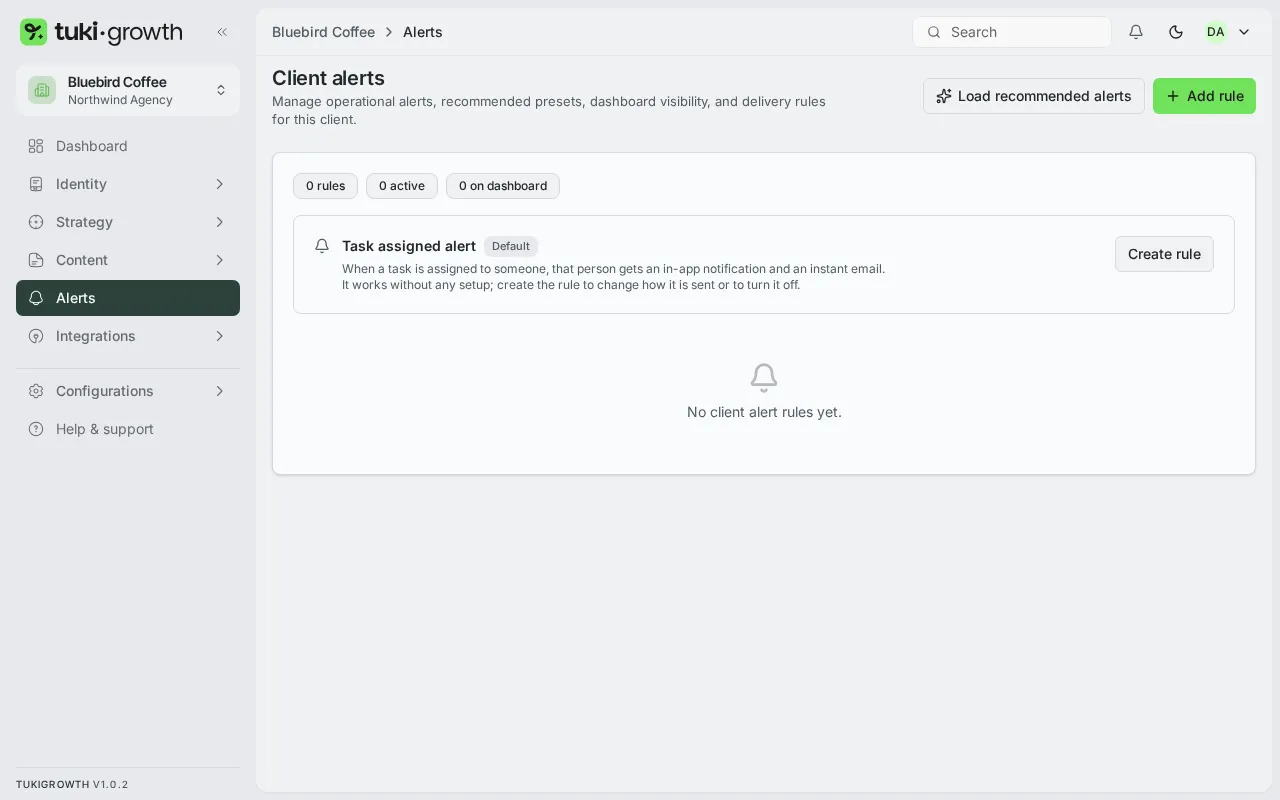
Click Create rule
TukiGrowth creates a rule equivalent to the default, which you can now edit: change how it is sent or turn it off.
I don't see the Task assigned alert card
It only appears if the client has the Tasks module turned on and doesn’t yet have a task assigned rule. If one already exists, edit it in the rules list.
The person didn't get the alert
Check that the task has an assignee and that the client’s rule, if there is one, is active. Also check the email didn’t go to the spam folder.