

Manage the organization's tasks
Create tasks, find them with filters and views, edit them without leaving the list and review each one's detail.
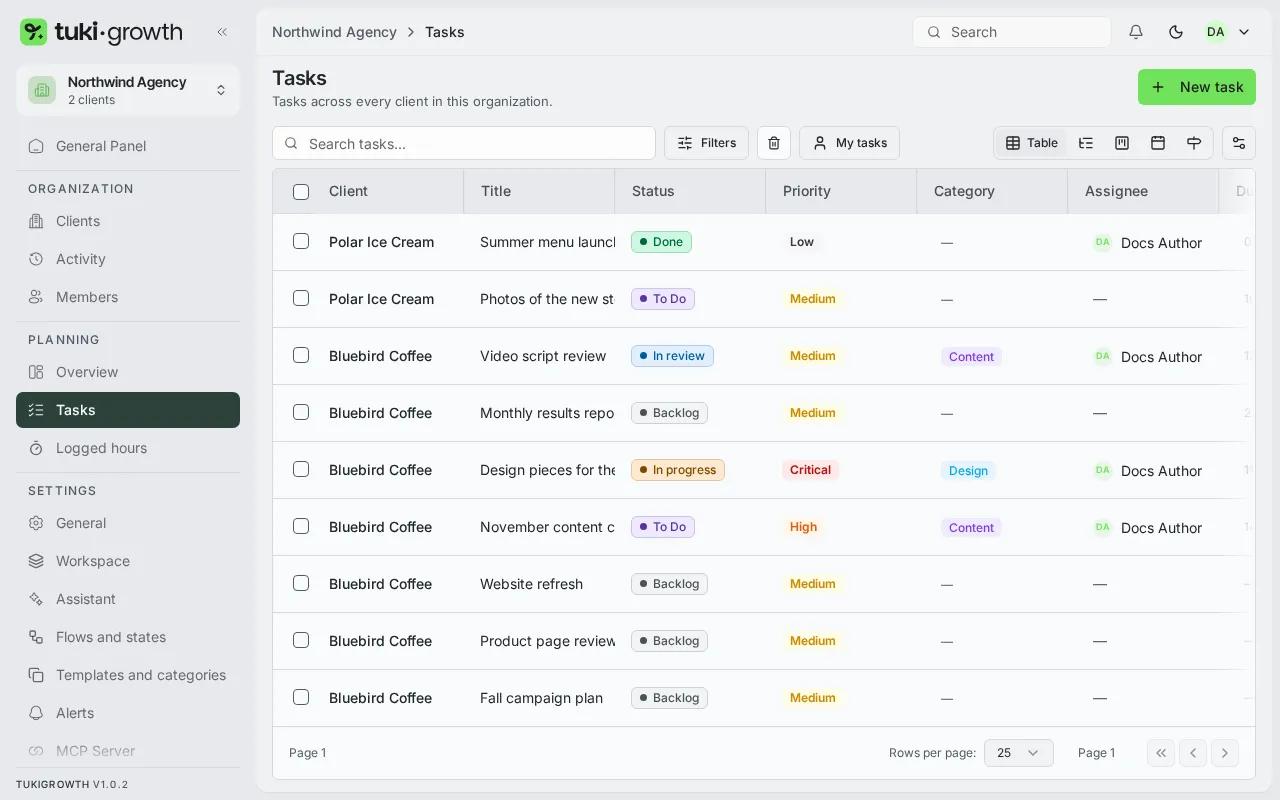
The Tasks list gathers the tasks of every client in the organization in one place. You can see them as a table, grouped by client, as a kanban board, as a calendar or as a Gantt, and change the most common fields (status, priority, category, assignee and due date) right in the row.
Open the list
In the organization’s side menu, open Planning > Tasks.
Create a task
Click New task
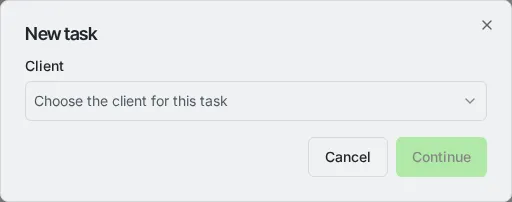
A dialog opens to choose the task’s client.
Choose the client
In Client, search by name and select the client. If you have many, type part of the name to filter the list. Then click Continue.
Fill in the details
Enter the Title and, if you want, the description, Priority, Status, Category, Assignee, dates and Estimate. Turn on Create another task after saving to load several in a row.
When you assign the task to someone else, that person gets an alert. See Task assigned alerts.
Find tasks
- Search tasks… searches by title.
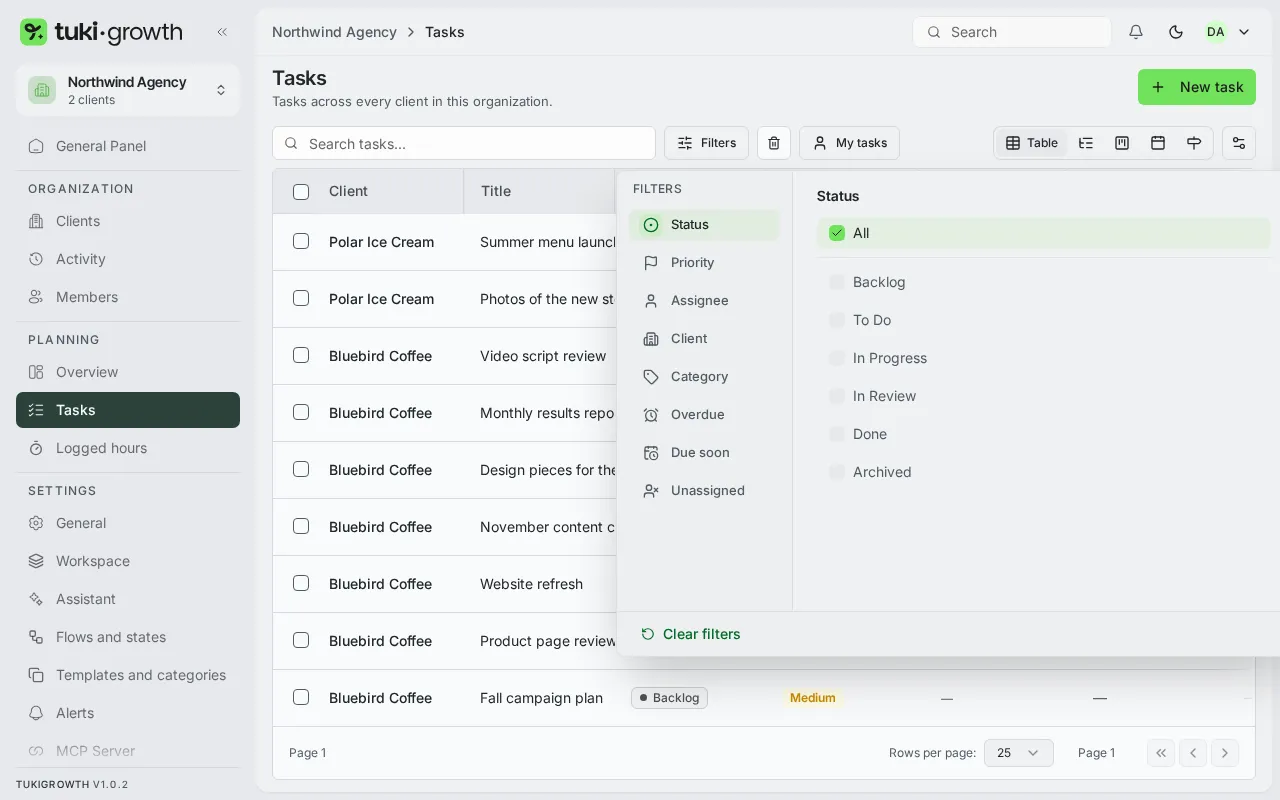
- Filters opens the panel to filter by Status, Priority, Assignee, Client, Category, Overdue, Due soon and Unassigned. In Client you can choose several at once.
- My tasks shows only the ones assigned to you.
- Clear filters removes all filters.
Switch views
Next to the filters, the view switcher toggles between Table, Grouped (by client), Kanban, Calendar and Gantt. In Kanban you can choose the board rows (by client, assignee, priority or category) and drag cards between statuses.
With the table or grouped view active, the settings button to the right of the switcher opens the view options, where you choose the Visible columns and the Row density. The title always stays visible.
Edit without leaving the list
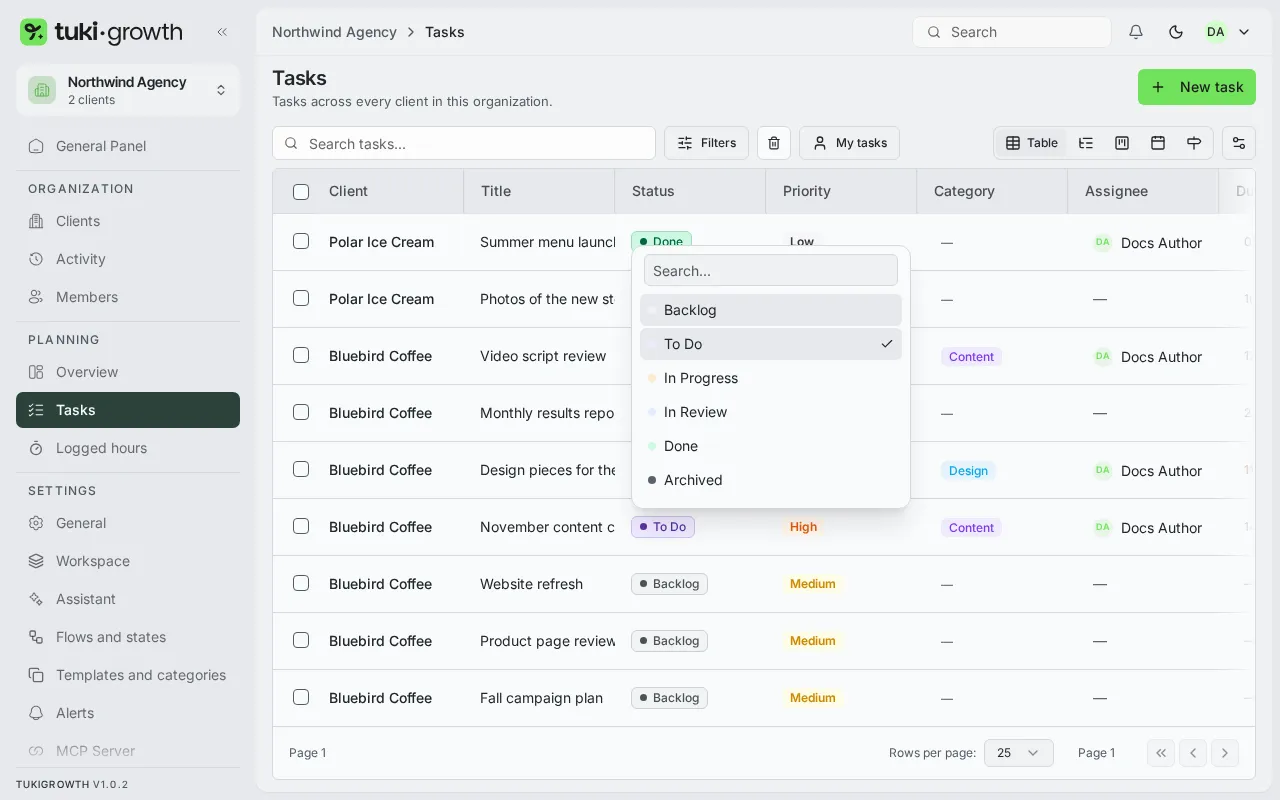
In the table, click a cell’s value to change it, without opening the task:
| Column | What you can do |
|---|---|
| Status | Choose another status from the workflow. |
| Priority | Choose Critical, High, Medium or Low. |
| Category | Choose a category, or leave it empty. |
| Assignee | Search and choose a person, or leave the task unassigned. |
| Due date | Pick a date on the calendar. |
Click anywhere else on the row to open the task’s Quick view, which links to the full detail.
Change several tasks at once
Check the rows you want and use Change status or Assign in the bar that appears. If the selection includes tasks from several clients, the change is applied client by client: if it fails for any, TukiGrowth tells you how many and the rest still apply.
A task’s detail
Click Open detail from the quick view to open the full page. Everything is edited in place:
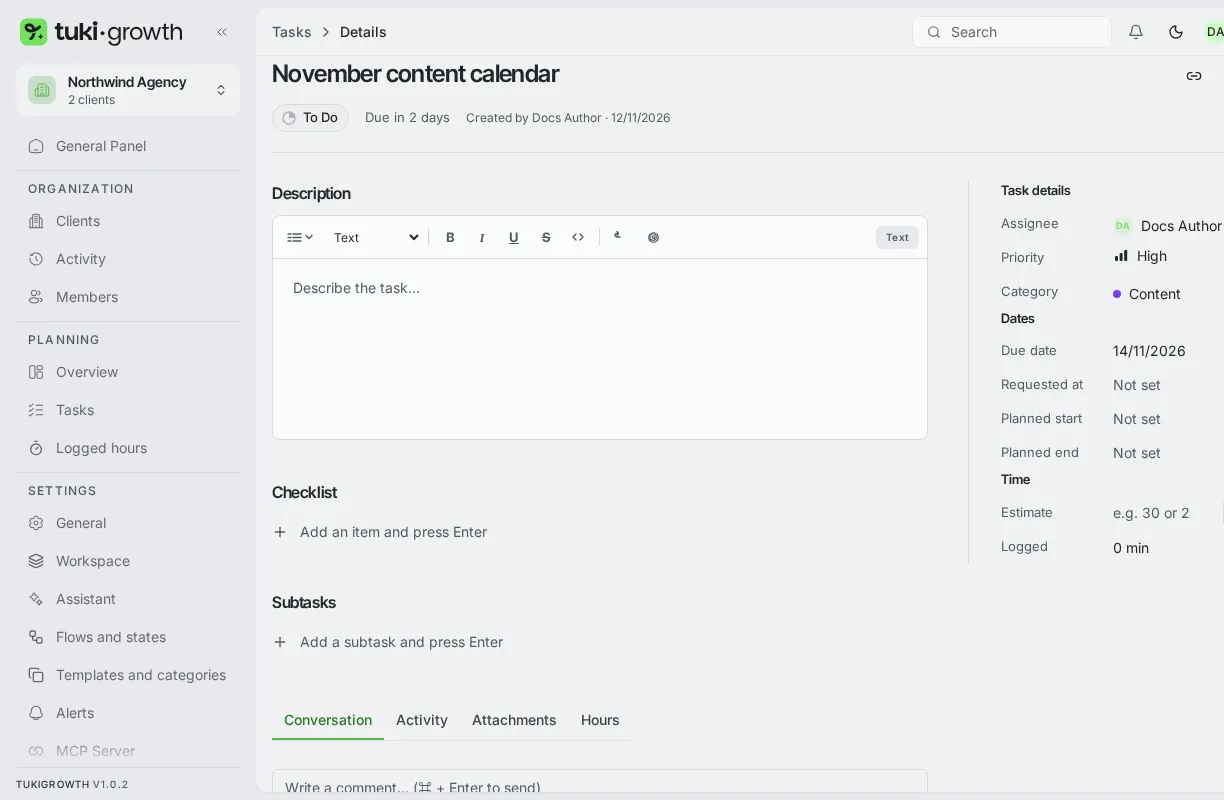
- The title and description are edited by clicking.
- The status is changed from its picker, which offers the statuses the task can move to according to the client’s workflow.
- In Task details you change Assignee, Priority and Category, and in Dates the due date and planned dates.
- The Estimate and the Logged time show progress against what was estimated.
- Use Checklist for small steps and Subtasks for work that deserves its own assignee and status.
- Conversation and Activity keep the comments and the change history.
- The header buttons let you Copy task link and, from the quick view, Clone. The More actions menu lets you delete the task (and, if it’s in the trash, restore it or delete it permanently).
Trash
The button with the trash icon, next to the filters, shows deleted tasks from every client. Select the ones you want and use Restore or Delete permanently. Deleting permanently also removes the hours, checklists and attachments, and can’t be undone. In the trash, cells aren’t editable.
I can't assign the task to a person
Each client defines who can receive tasks. Ask whoever manages that client to include the person among the assignable users.
I don't see all the tasks
The list shows the first matches in the board, grouped and Gantt views. Adjust the filters to narrow the result.