

Review logged hours
Review time logged by person or period and compare it with each task's estimate.
The Logged hours report brings together time entries for a client’s tasks so you can compare activity in a period with task estimates.
Steps
-
Choose a client in the sidebar selector.
-
Open Tasks > Logged hours.
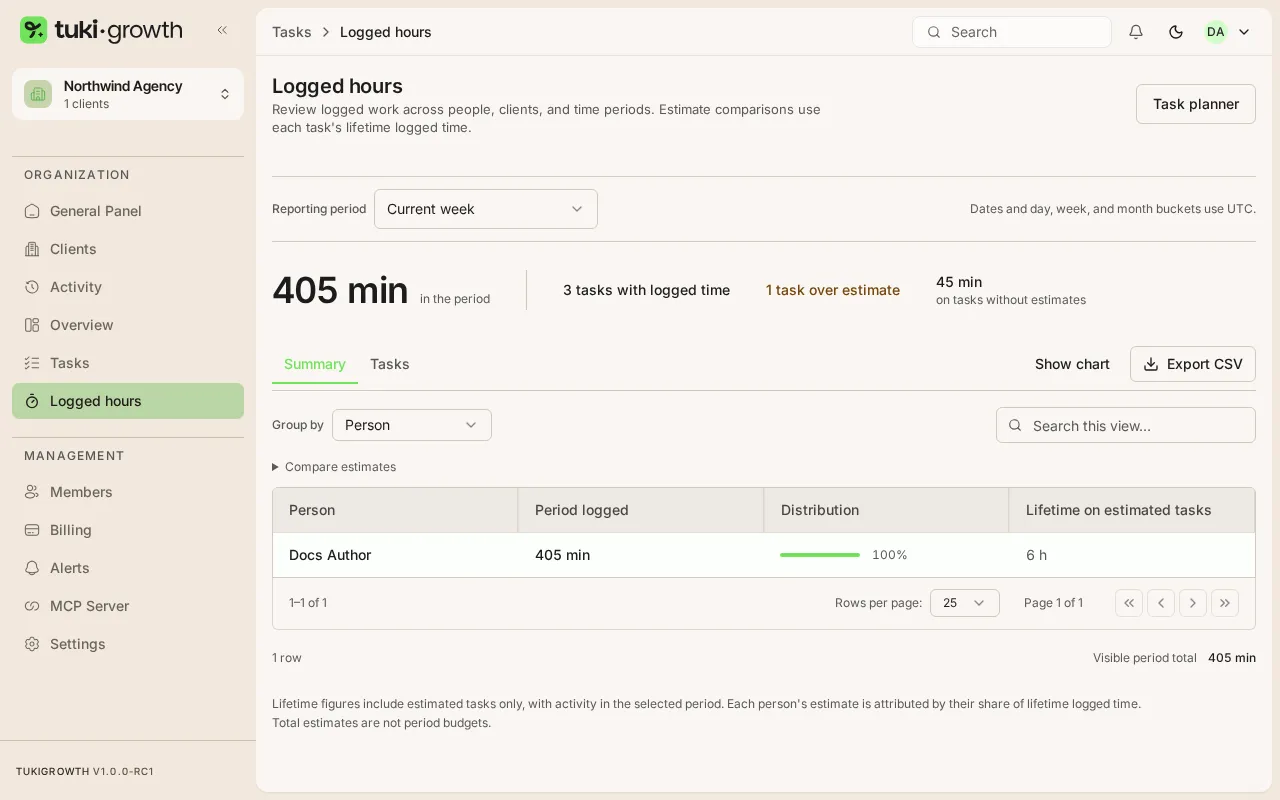
The report opens on Summary, with inline totals and a table grouped by person. The default columns show period logged time, distribution, and lifetime time on estimated tasks only—not lifetime time across all tasks. The chart is hidden initially.
-
Under Reporting period, choose an option such as Current week, Current month, or Last 30 days.
-
To enter exact dates, choose Custom range.
-
Enter the Start date (UTC).
-
Enter the End date (UTC).
-
Select Apply dates.
-
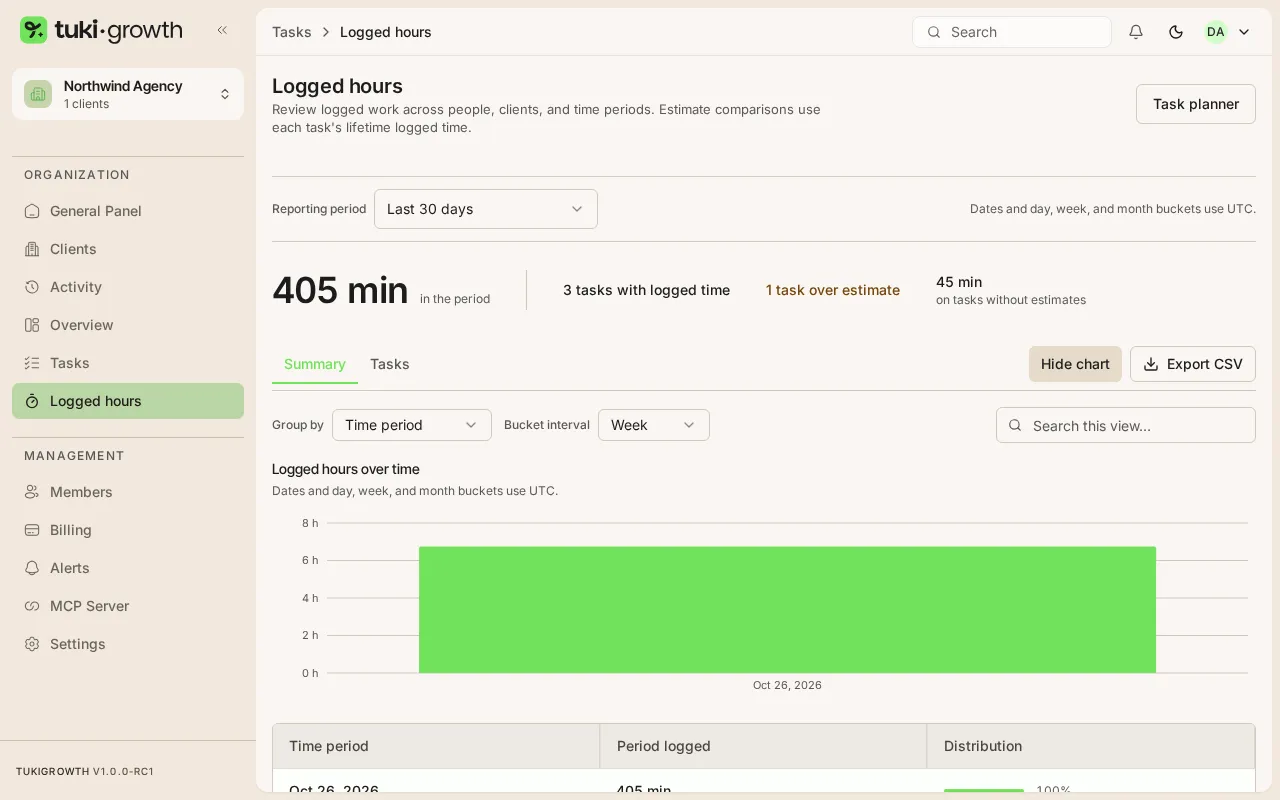
Under Group by, select Time period.
-
Choose a day, week, or month for the Bucket interval.
-
Select Show chart to display the chart for the current view. Use Hide chart to collapse it again.
-
In Summary, expand Compare estimates when you need the additional aggregate comparison columns. Lifetime comparisons include estimated tasks with activity in the selected period; total estimates are not period budgets. Each person’s estimate is attributed by their share of lifetime logged time.
-
Select the Tasks tab to review individual tasks, their period and lifetime logged time, total estimate, lifetime variance, and estimate-used percentage. Tasks without estimates are excluded from comparisons and their time is reported separately.
-
Use Search this view… to filter rows in the selected tab.
-
Select Export CSV to download only the filtered rows from the active tab. Return to Summary to export its grouped rows instead.