

Create a client
Add a brand and complete its initial setup in a few minutes.
A client is the brand or company you serve. Each client has its own data, modules, and team. When you create one, a setup assistant asks a few questions and turns on the recommended modules.
Create the client
Open the clients list
In the sidebar, open Clients and pick your organization in the Organization selector. You’ll see your organization’s brands.
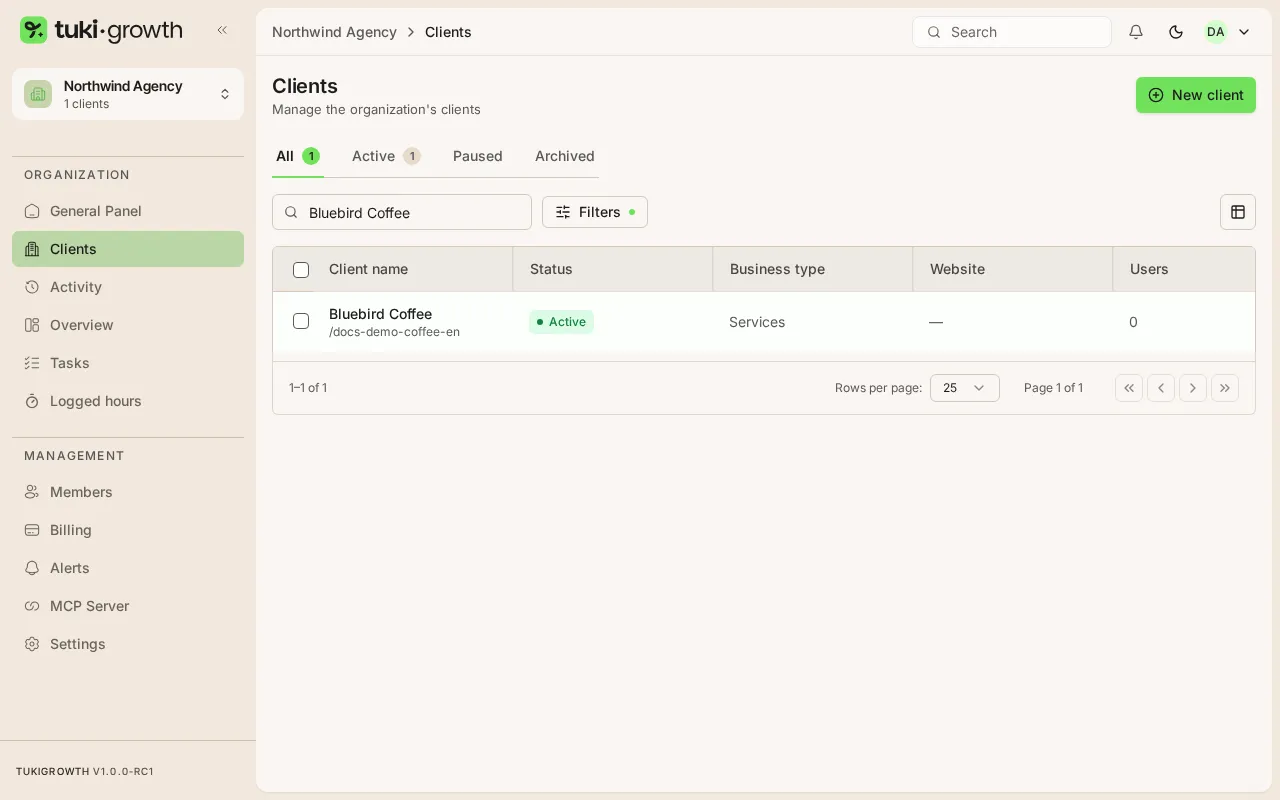
Click New client
The button is at the top right.
Fill in the client's details
Type the Client name. It’s the only required field, because the identifier (slug) is generated from the name. Optionally choose the Entity type and Business type, and enter the Website.
Under How do you work with this client? choose Essential, Production, Campaigns, or Complete, or keep Same as the agency default. You can change it later in the client settings.
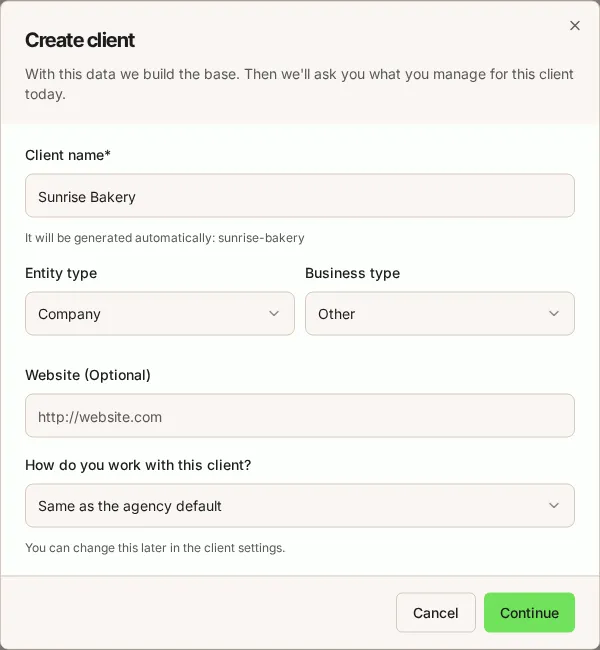
Click Continue
The Initial client setup opens, a three-step assistant: Essential questions, Knowledge base, and Client ready. Your progress saves automatically, so you can leave and come back.
Complete the initial setup
Answer the essential questions
There are three questions, one per screen, and none is required:
- What the client is and does: free text. The more specific you are, the better.
- Which services you provide today: check all that apply, or None yet, we’re just starting with this client.
- What their business has or needs: free text.
Use Save and continue to move on and Finish questions on the last one. The services you check in the second question are turned on as modules in the last step.
Add the knowledge base
Drag in your documents or click to browse your files, or paste the text directly. PDF, TXT, DOC, and DOCX files are accepted, up to 20 MB each and up to 10 files. If you don’t have material yet, click Skip for now.
Review the modules in Client ready
Under We activated this for you you see what’s on: Brand Profile and Strategy are Always on, plus the modules that match your answers. Under May be useful later you can turn on others with each one’s switch. Modules your plan doesn’t include show Not available in your plan.
Click Save and finish
You return to the clients list, where the new client now appears.
The module switches are locked
In the last step only Owner and Admin members can turn modules on. If you’re an Editor, the client is still created and someone with those roles turns the modules on. Afterward, editors can also do it from the client’s Modules tab.
I see an error uploading a file
Check the format (PDF, TXT, DOC, or DOCX), that it’s under 20 MB, that you haven’t reached 10 files, and that you haven’t uploaded another one with the same name.