

Complete the brand profile
Give TukiGrowth the brand's context so the assistant and the AI work with its voice, audience, and offer.
The Brand Profile is each client’s fact sheet: what it does, who it speaks to, how it sounds, and what it offers. It’s what the AI assistant and content creation use as context, so the more complete it is, the better the results.
Open a client’s profile
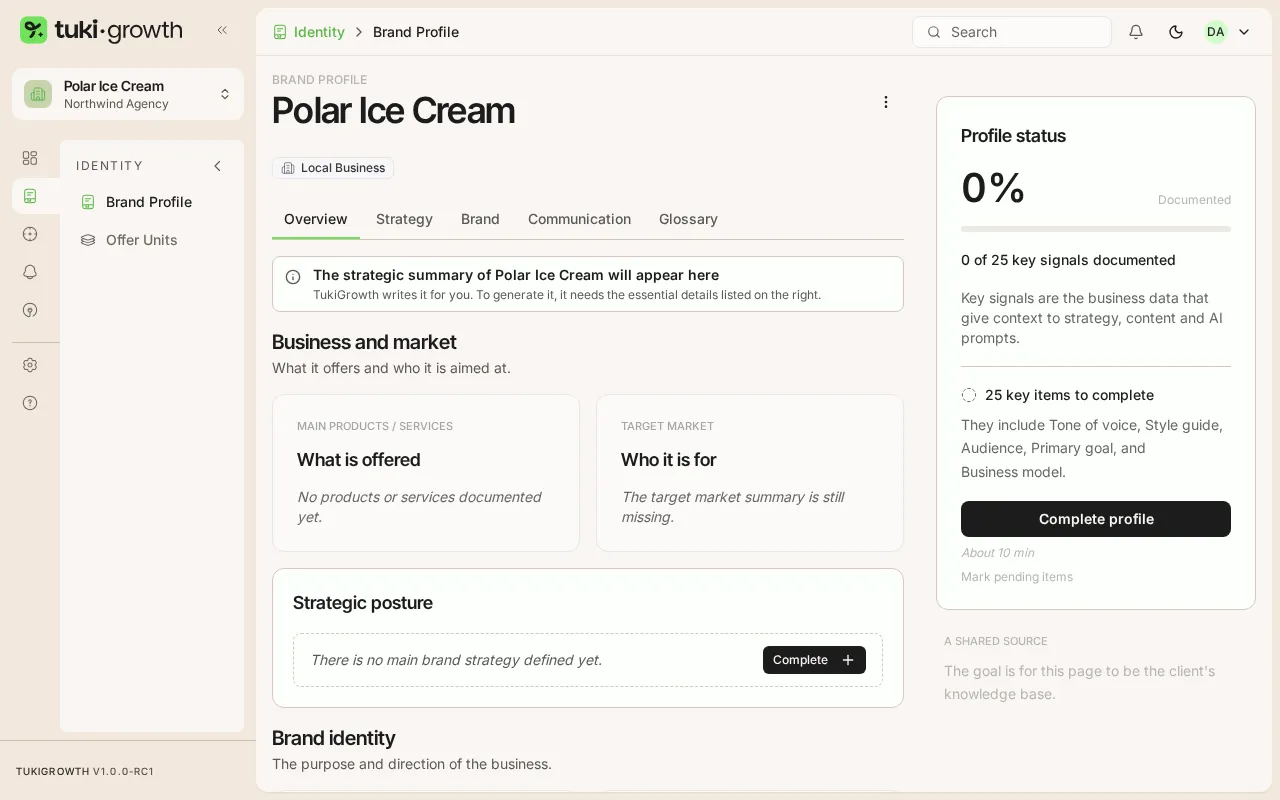
Pick the client in the sidebar selector and, in the Identity group, open Brand Profile. A new client shows Profile status at 0%: that’s what’s left to document.
Complete the profile with the assistant
The quickest way to start is a five-question assistant. It tells you the approximate time left based on what’s already documented.
Click Complete profile
The button is in Profile status. You can also find it in the More actions menu (the three dots) in the header.
Answer the questions
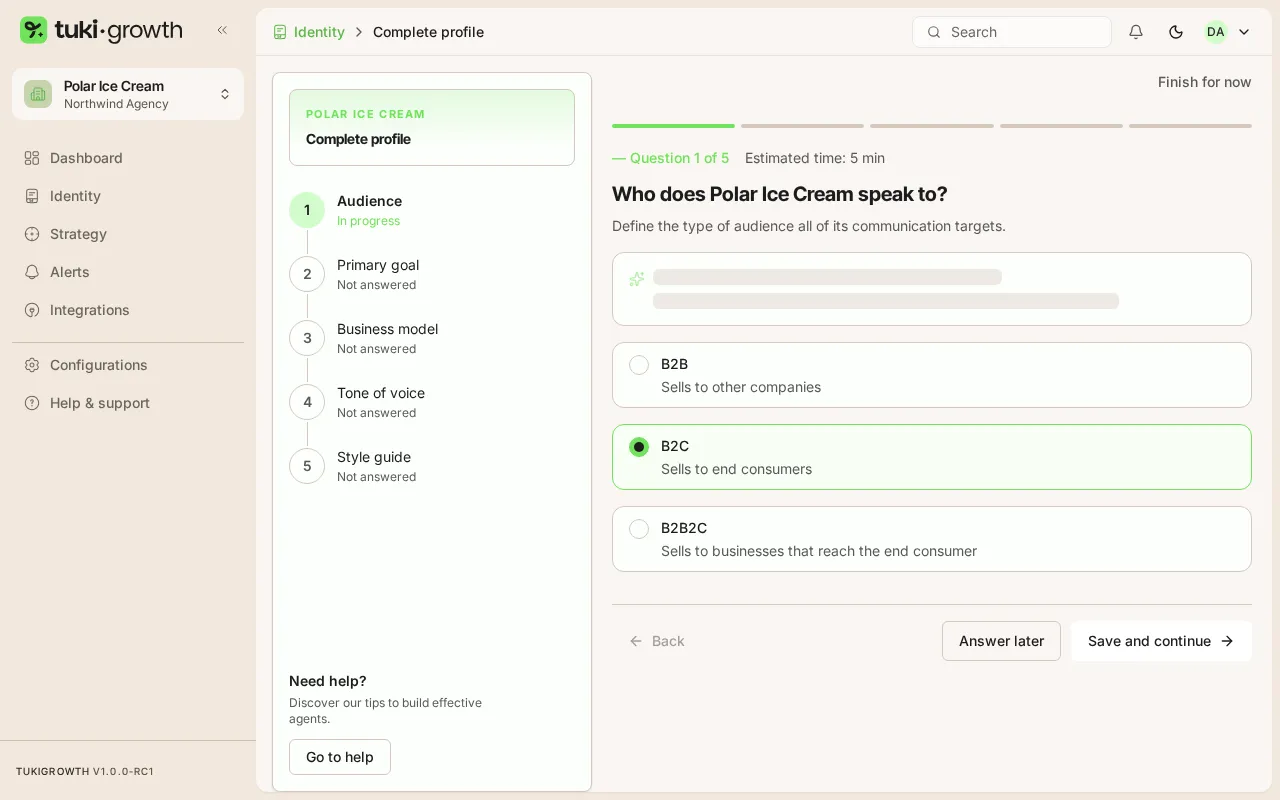
Each question has its own screen. Pick an option and click Save and continue.
| Step | What it asks | How to answer |
|---|---|---|
| Audience | Who the brand speaks to | B2B, B2C, or B2B2C |
| Primary goal | What the brand is after | Awareness, Lead generation, Sales, or Retention |
| Business model | How it sells | Transactional, Consultative, Subscription, or Appointment based |
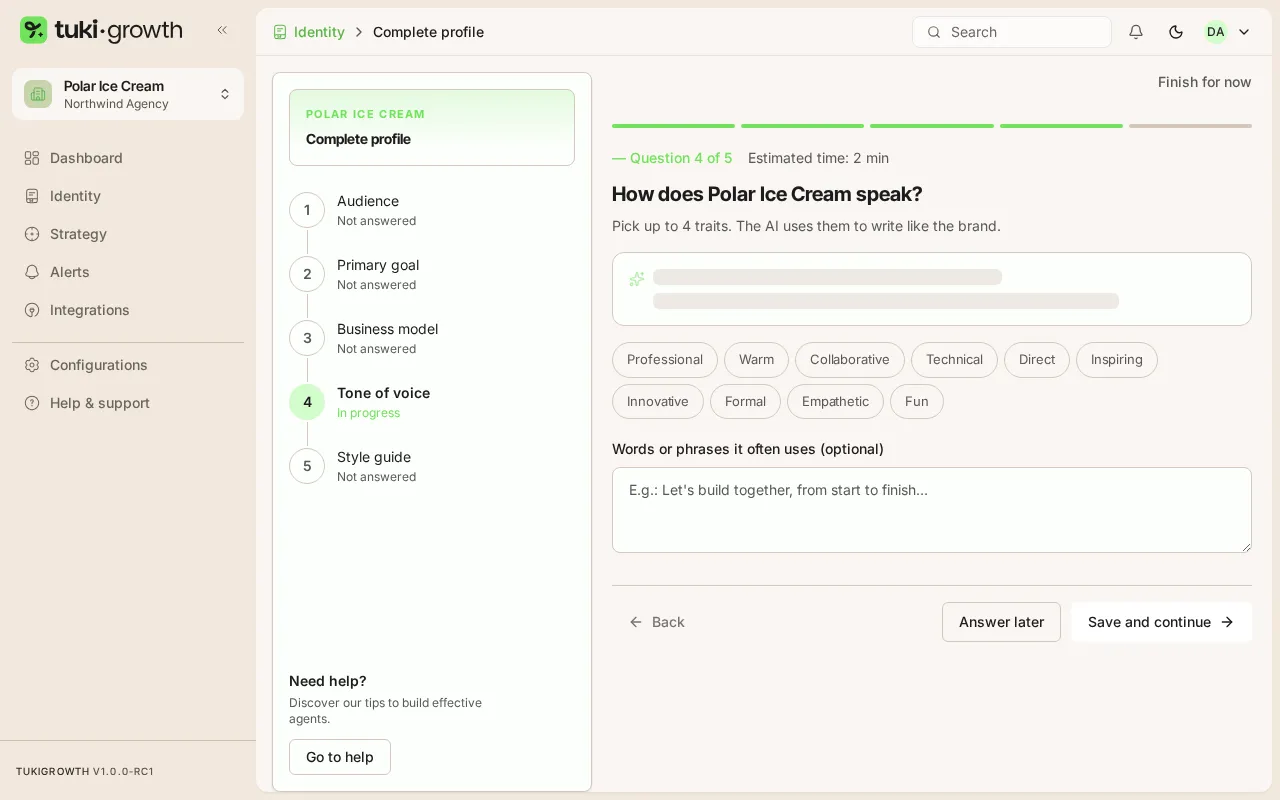
| Tone of voice | How the brand talks | Up to 4 traits, and optionally Words or phrases it often uses |
| Style guide | Whether it has visual guidelines | Upload documents or describe them in your own words |
Decide what to do with what you don't know
Answer later leaves that step unanswered and moves on. Finish for now leaves the assistant: the steps you already saved stay saved and, if you have unsaved changes, it asks what to do. When you come back, you pick up at the first unanswered question.
Click Save and finish
When you’re done, TukiGrowth generates a strategic summary of the client from what you documented (see below) and takes you to the profile.
Complete and edit the profile
After the assistant, the profile is maintained through tabs. Each card is edited on its own with Edit and saved with Save changes.
| Tab | What you load there |
|---|---|
| Overview | A view of the whole profile and the strategic summary. Missing data shows a Complete button. |
| Strategy | Strategic profile: industry, audience type, goal, sales motion, business stage, content and paid media maturity, priority channels, and whether it has online checkout, appointments, a sales team, or a catalog. |
| Brand | Company identity (description, mission, vision, products and services) and value proposition (competitive advantages, differentiators, and target market). |
| Communication | Communication style, tone of voice, vocabulary, guidelines, dos and don’ts, channel guidelines, and key messages. |
| Glossary | The brand’s own terms with their definitions. |
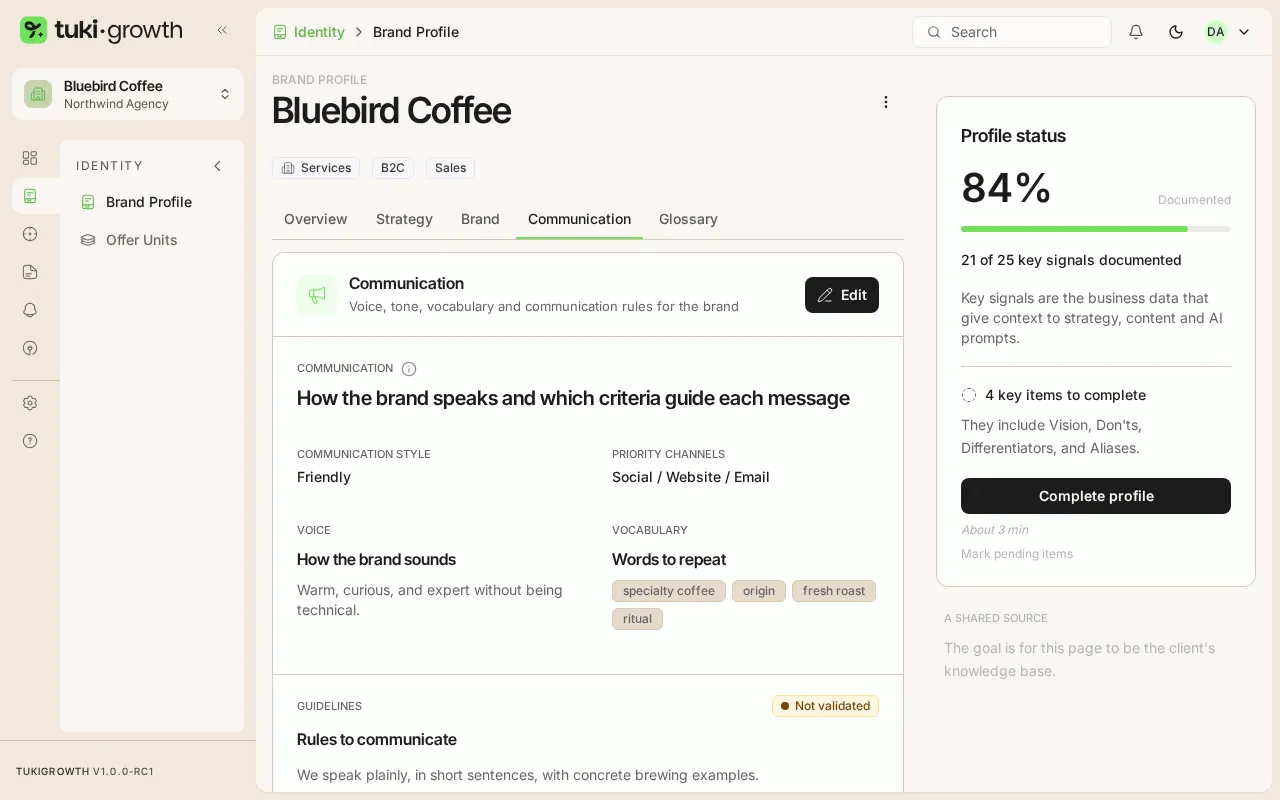
Track your progress
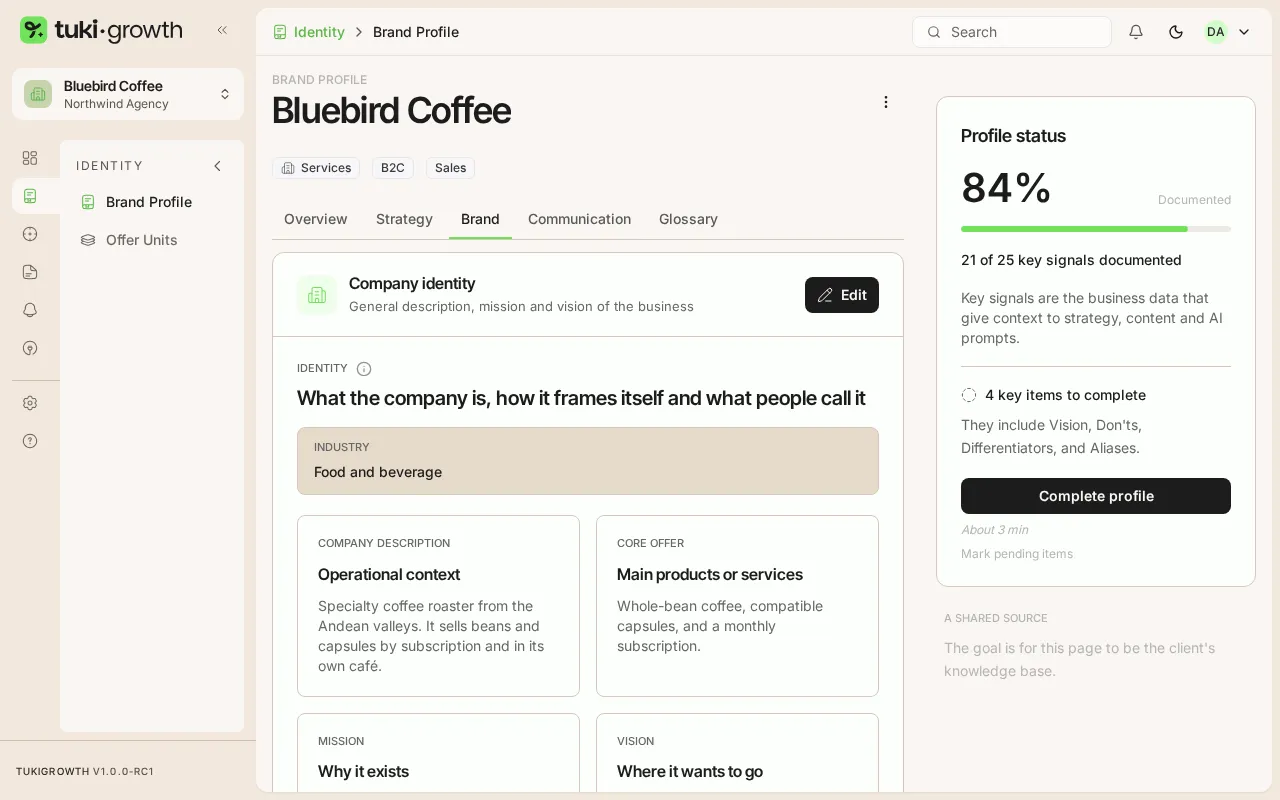
The Profile status card counts how many of the 25 key signals you’ve documented. Below it you see which ones are missing and you can click one to complete it. Mark pending items highlights the missing data in the profile.
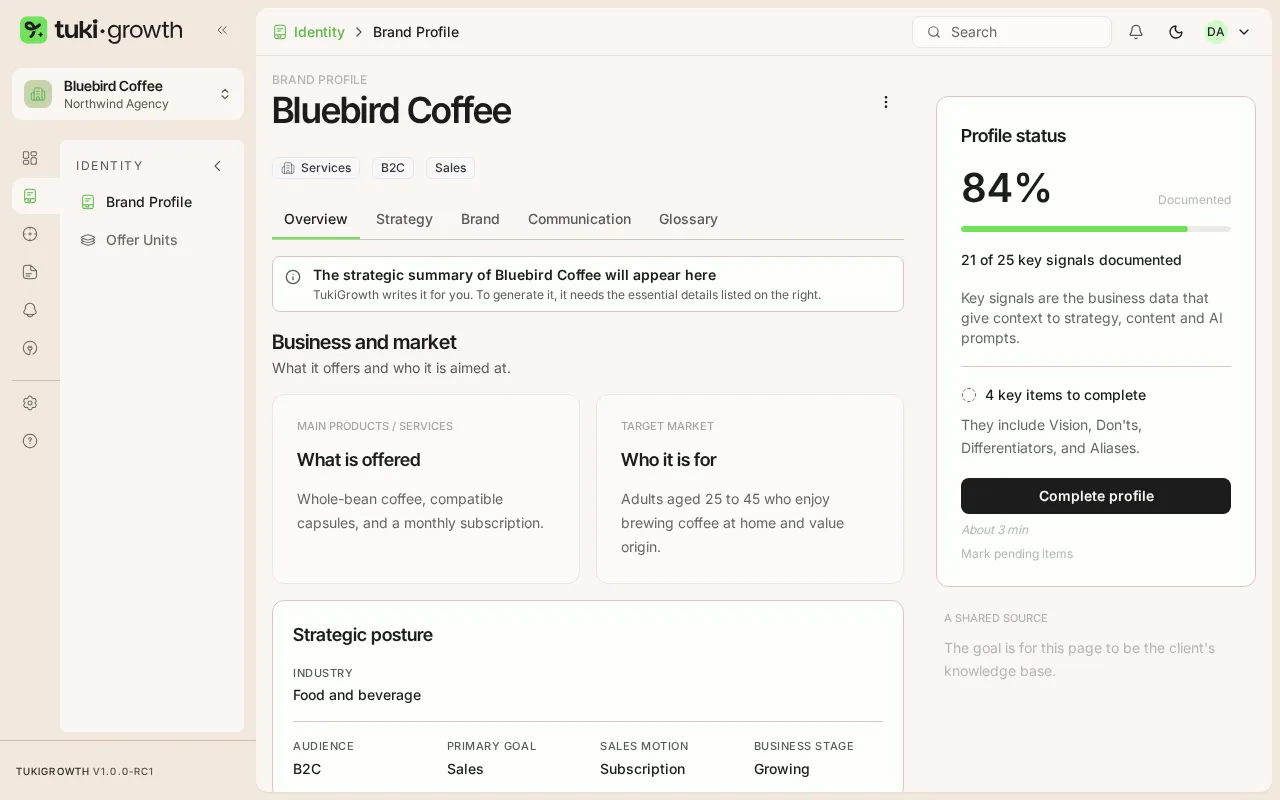
Strategic summary
On the Overview tab, TukiGrowth writes a headline and a paragraph with the client’s positioning, labeled Generated by TukiGrowth. It’s created automatically the first time the profile reaches 60% documented, and you can refresh it with Regenerate. It uses your organization’s AI credits.
Version history
In the More actions menu, History shows the profile’s earlier versions. You can compare them with the current version and Restore one; restoring is recorded as one more version.
I don't see the Edit or Complete profile buttons
You need the Owner, Admin, or Editor role in the organization. With other roles the profile is read-only.
The strategic summary isn't generated
The profile needs some documented data and your organization needs AI credits available. If the attempt fails, use Regenerate later.
I want to change an answer from the assistant
Edit the data directly in the right tab with Edit. You can also reopen the assistant: it starts at the first unanswered question.