

Create a strategy with the wizard
Define objectives, audiences, and pain points, build a client's strategy, and activate it step by step.
A strategy ties together a client’s objectives, the audiences it wants to reach, and the problems it solves into a single approach. The guided wizard creates all the pieces in five steps and leaves the strategy ready to activate.
How the pieces relate
| Piece | What it is |
|---|---|
| Objective | What the client wants to achieve, with a KPI, an initial value, and a target. |
| Audience | Who it needs to reach: a buyer persona with its characteristics. |
| Pain point | A problem of that audience that the strategy will address. |
| Strategy | The approach that ties objectives, audiences, and pain points together. |
| Initiative | A concrete piece of work to execute the strategy: a campaign, project, always-on effort, or experiment. |
Open the wizard
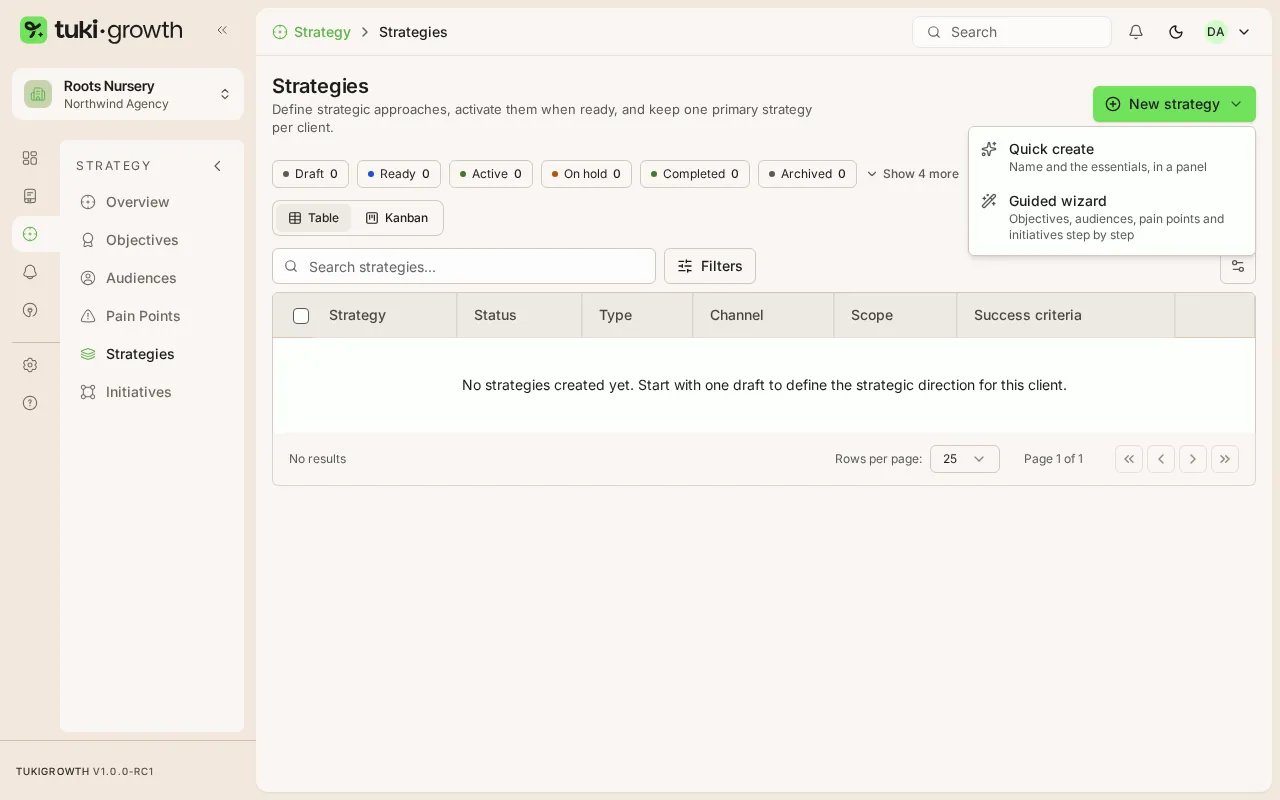
Open Strategies
In the Strategy menu, go to Strategies.
Click New strategy
Choose Guided wizard. The other option, Quick create, opens a panel with the name and the essentials.
Go through the five steps
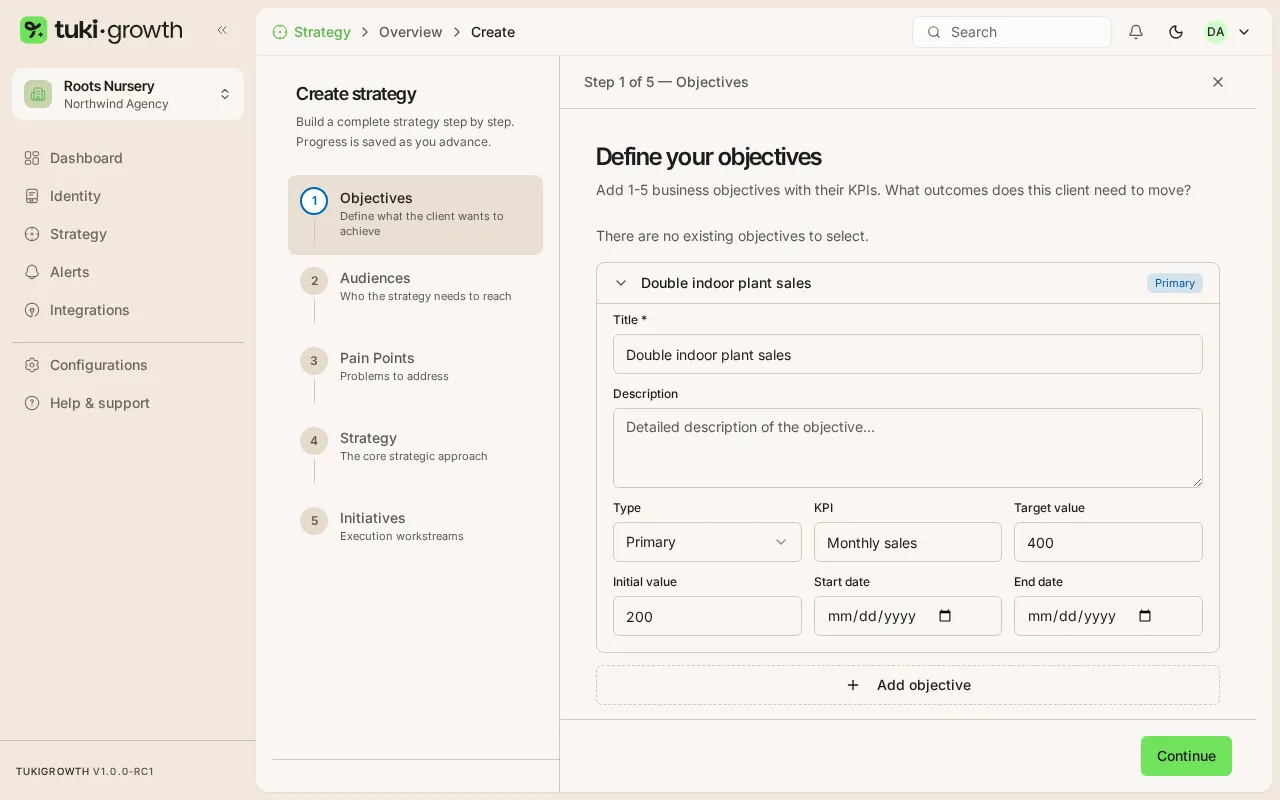
Objectives
Add 1 to 5 objectives or pick objectives the client already has. For each one fill in the Title (required), the Type (Primary or Secondary), the KPI, the Initial value, the Target value, and, if you want, the start and end dates.
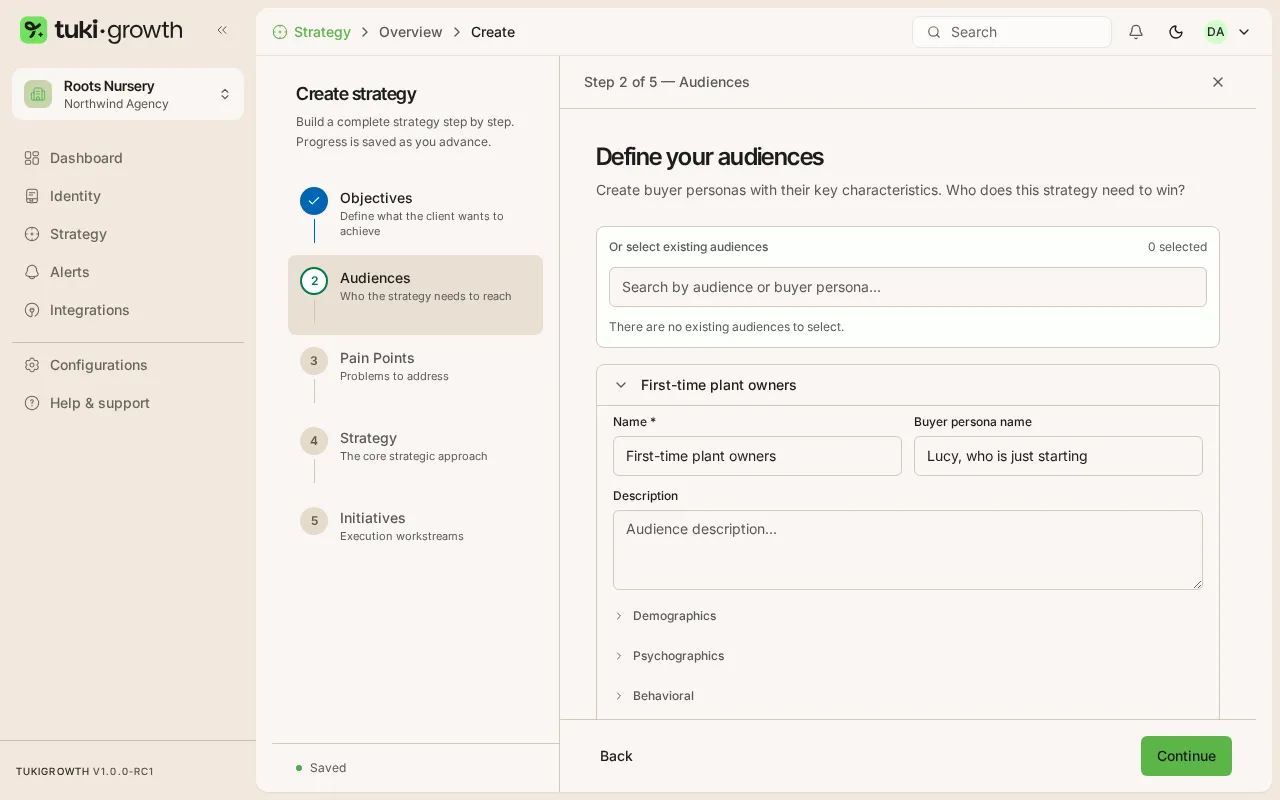
Audiences
Add 1 to 5 audiences, or pick existing ones. The Name is required and can’t repeat within the client. Optionally fill in the Buyer persona name, the Description, and the Demographics, Psychographics, and Behavioral blocks.
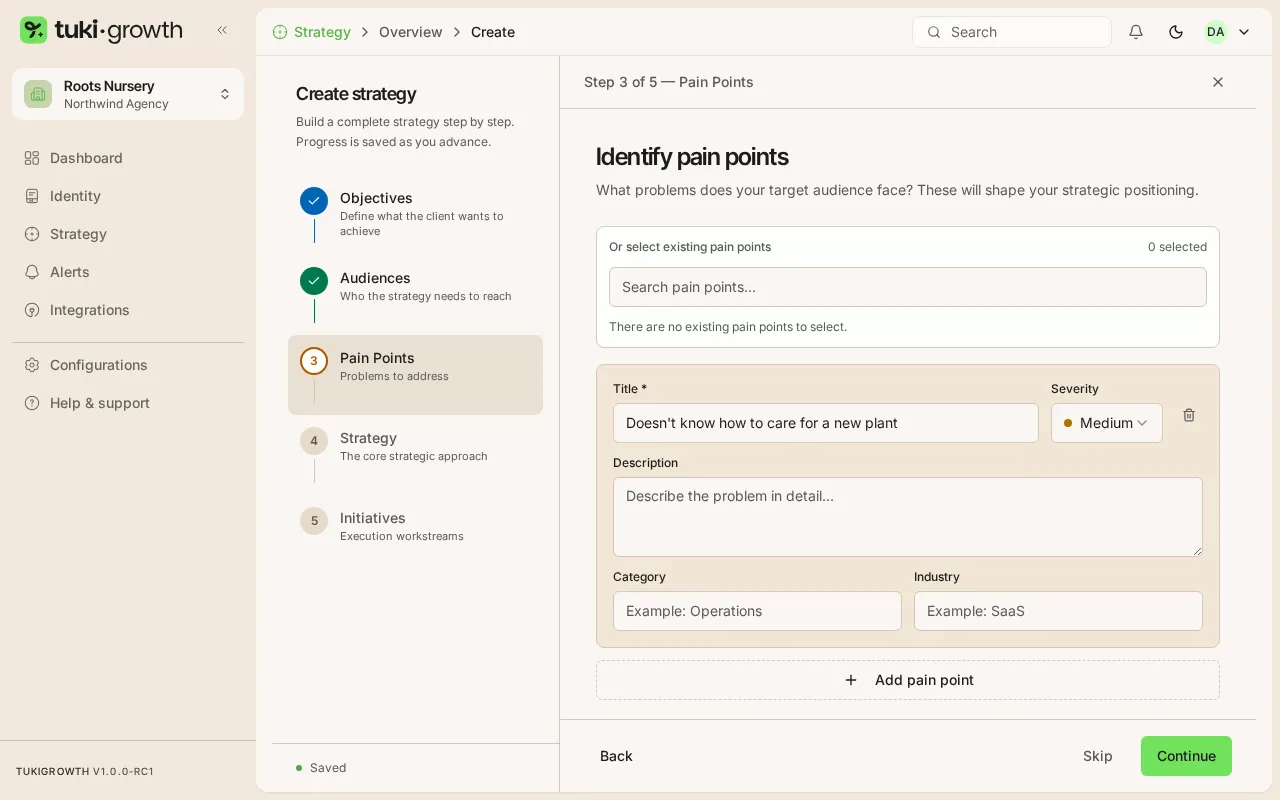
Pain Points
This step is optional: use Skip if you don’t need it. Each pain point has a Title (required), a Description, a Severity (Low, Medium, High, or Critical), a Category, and an Industry.
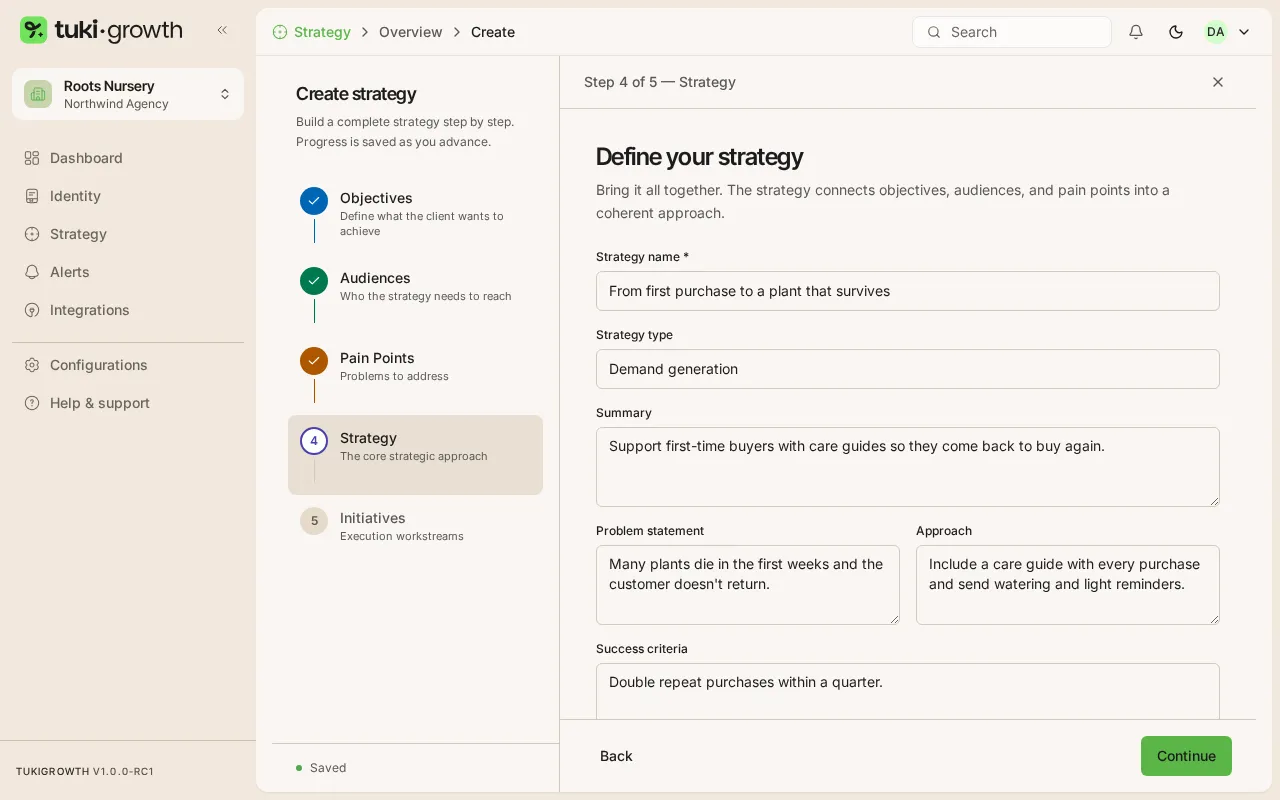
Strategy
Type the Strategy name (required). To be able to activate it later, also fill in the Summary, Problem statement, Approach, and Success criteria. At the top you see how many objectives, audiences, and pain points are linked from the previous steps.
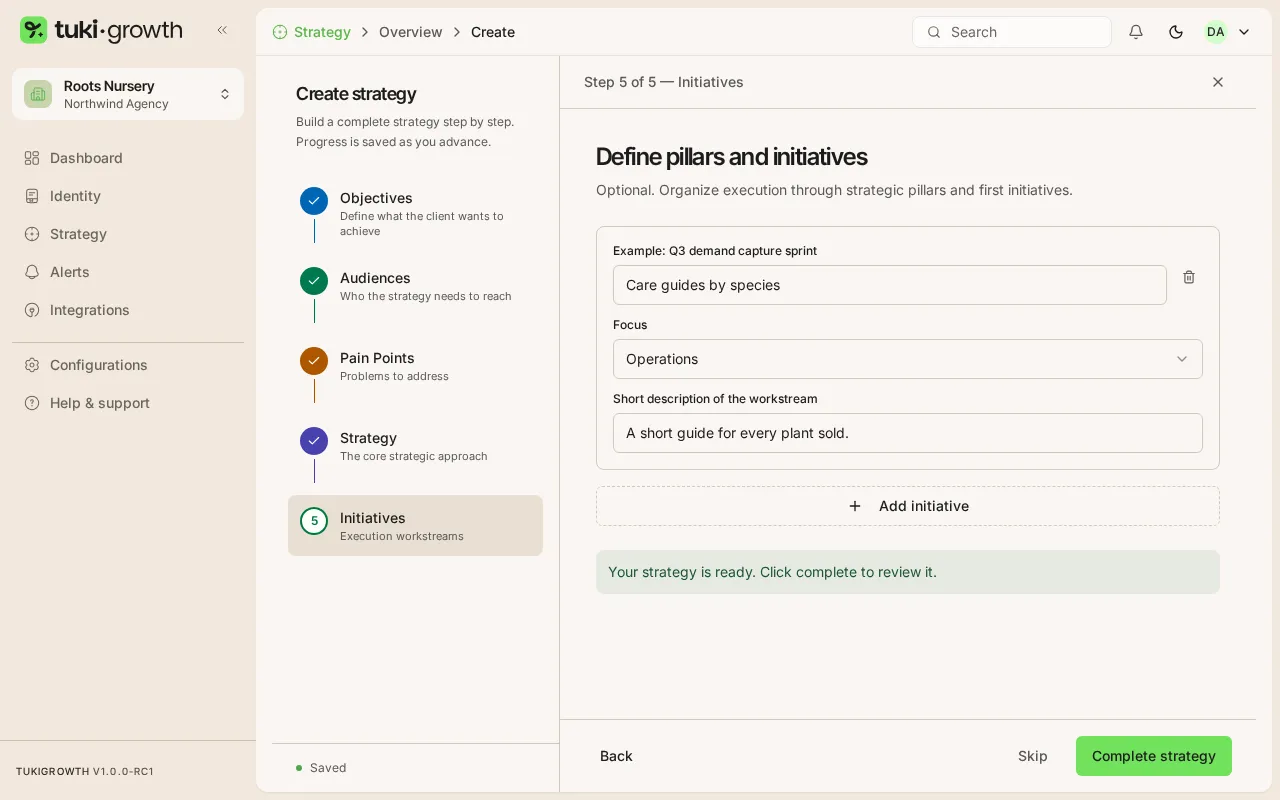
Initiatives
This step is optional too. Add an initiative with its Initiative name and a Summary; any without a name are ignored. When you’re done, click Complete strategy.
Activate the strategy
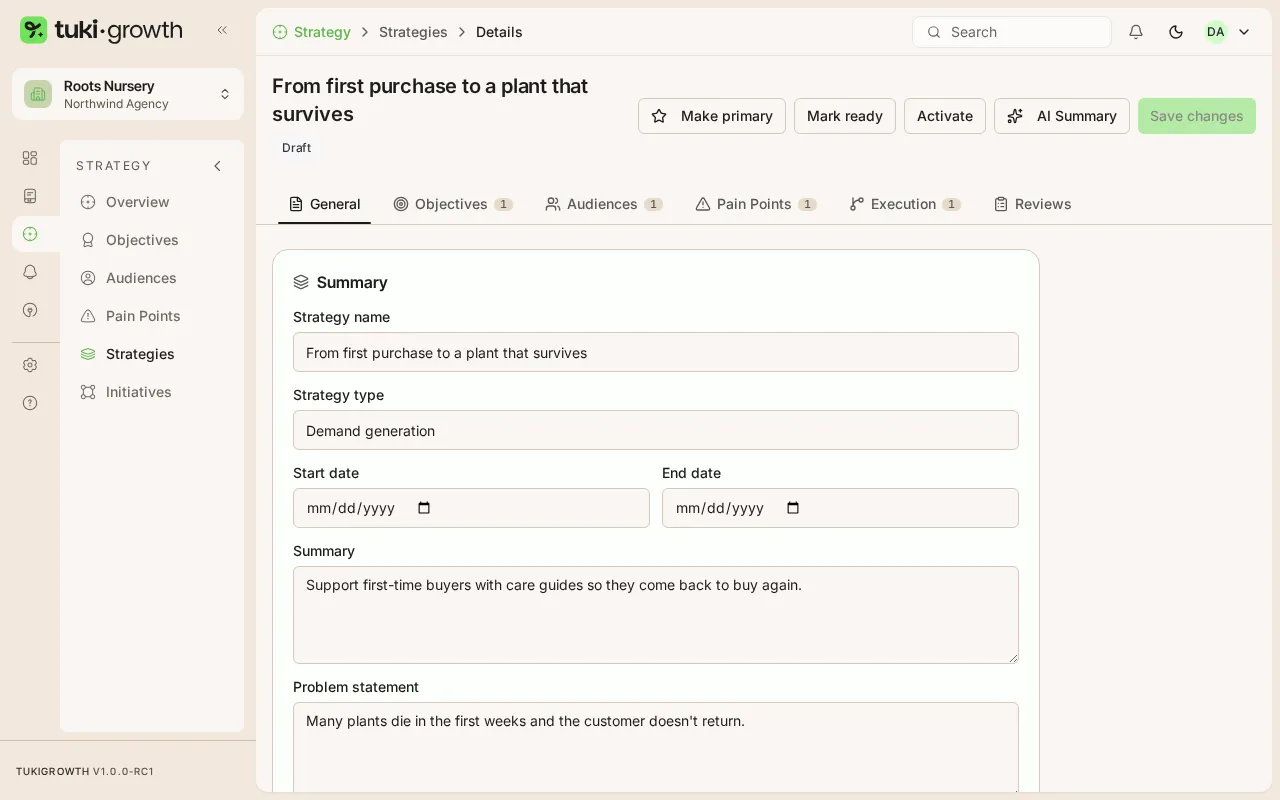
When you complete the wizard you land on the strategy’s detail page, where it starts as a draft.
Check that it's complete
To become ready or active, the strategy needs a Summary, Problem statement, Approach, and Success criteria, and at least one linked objective. If the objective is missing, the buttons are disabled and tell you Link at least one objective first; you can link one in the Objectives tab.
Click Mark ready or Activate
Mark ready gets it prepared; Activate puts it in motion.
Make it primary
Click Make primary so it’s the strategy the team sees in the Strategy overview. Each client has one primary strategy.
From there you can also Pause the strategy, Complete it (it needs an end date), or Restore to draft. Follow its progress in the Strategy overview.
The Activate button is disabled
Check that the strategy has all four texts filled in (Summary, Problem statement, Approach, and Success criteria) and at least one objective linked in the Objectives tab.
It says an audience with that name already exists
Audience names can’t repeat within a client. Change the name or pick the existing audience under Or select existing audiences.
I don't see the Primary strategy card in the overview
The card appears only when a strategy is marked as primary and isn’t completed or archived yet. A strategy created with the wizard isn’t primary until you click Make primary.
I want to change something from the wizard after moving on
Back lets you review earlier steps, but once the strategy is created in step 4, changing its fields from the wizard doesn’t update it. Edit it from its detail page.