

Choose a client's modules
Turn on only what each brand needs and understand which modules your plan includes.
Modules are the TukiGrowth features each client uses: Briefs, Social Media, Website, and more. Turning on only the ones a brand uses keeps the menu clean. Which modules you can turn on depends on your plan.
How modules work
- Brand Profile and Strategy are Required: they’re Always active for every client and can’t be turned off.
- Tasks is included with the plan for the whole organization: you don’t turn it on client by client.
- The other modules are turned on per client: Briefs, Social Media, Website, Ephemerides, Reference Content, Assets, Ecommerce, Contracting, Advertising, Email Marketing, Authority, Leads, AI Assistant, and AI Agents, among others. You can only turn on the ones your plan includes.
Turn a client’s modules on or off
Open the client's modules
Pick the client in the sidebar selector, open Settings, and go to Modules. At the top you see how many modules are active, inactive, and in total.
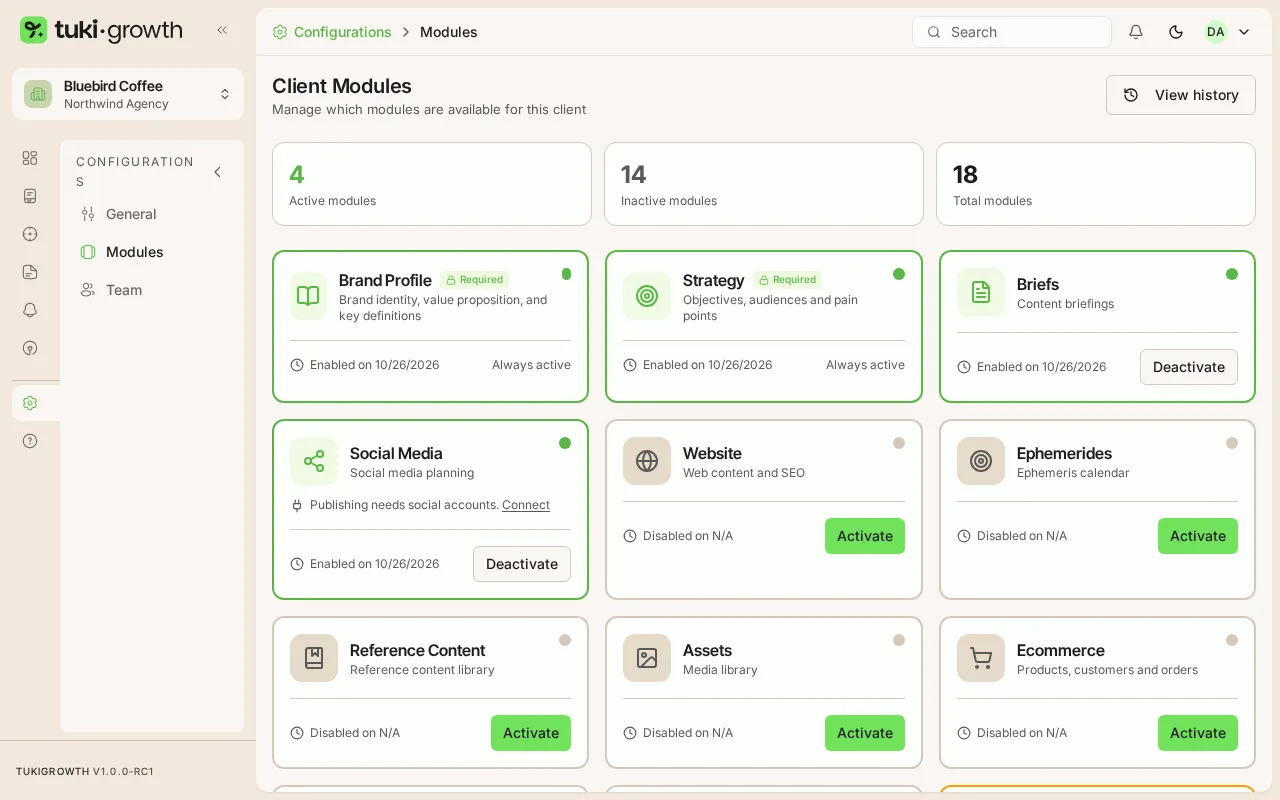
Turn each module on or off
Click Activate or Deactivate on the module’s card. When you pick the client in the sidebar selector, its active modules show up in the menu.
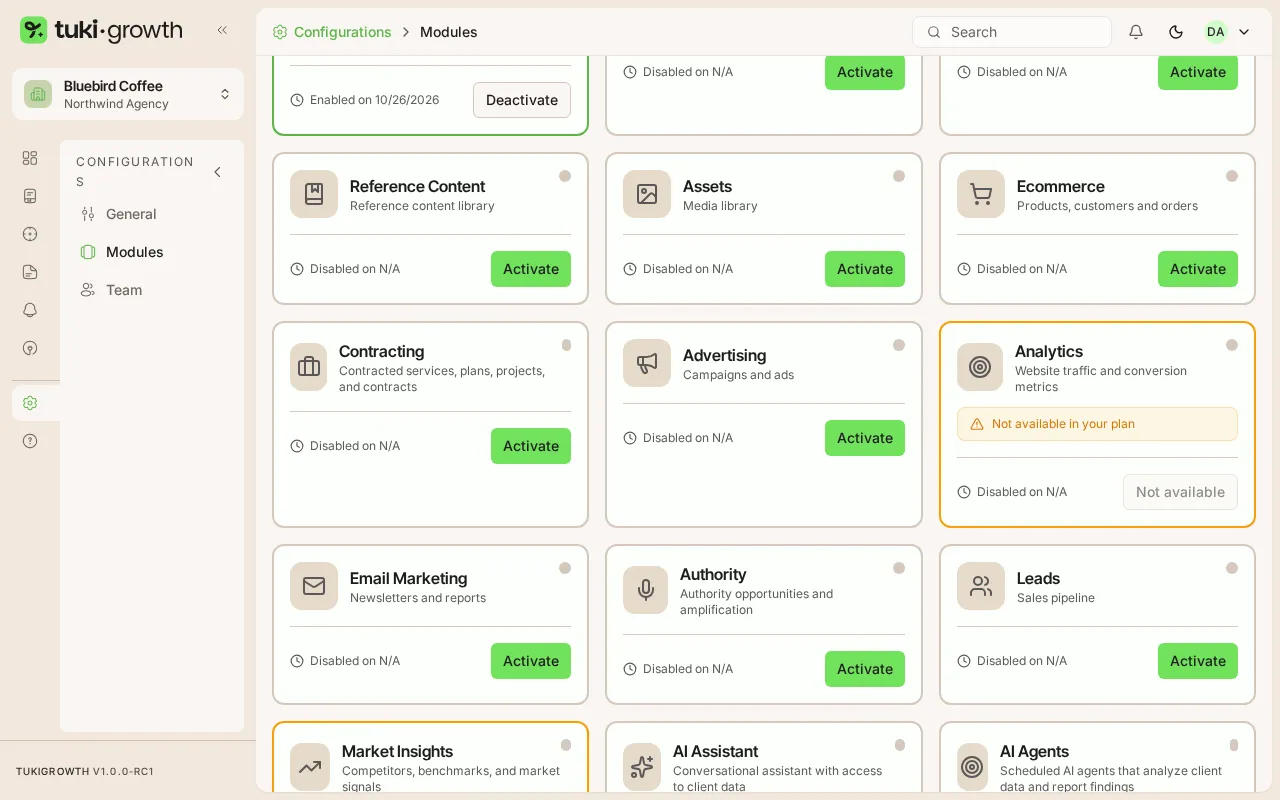
Check the modules your plan doesn't include
Modules your plan doesn’t include show the Not available in your plan notice and a Not available button.
Turn modules on by default
If most of your clients use the same modules, set them once and they turn on automatically every time you create a client.
Open the organization settings
In the organization’s sidebar, open Settings and choose the Modules tab. You need the Owner or Admin role.
Check the default modules
Under Default modules for new clients, check the ones you want. Modules your plan doesn’t include show Not included in your plan and can’t be checked.
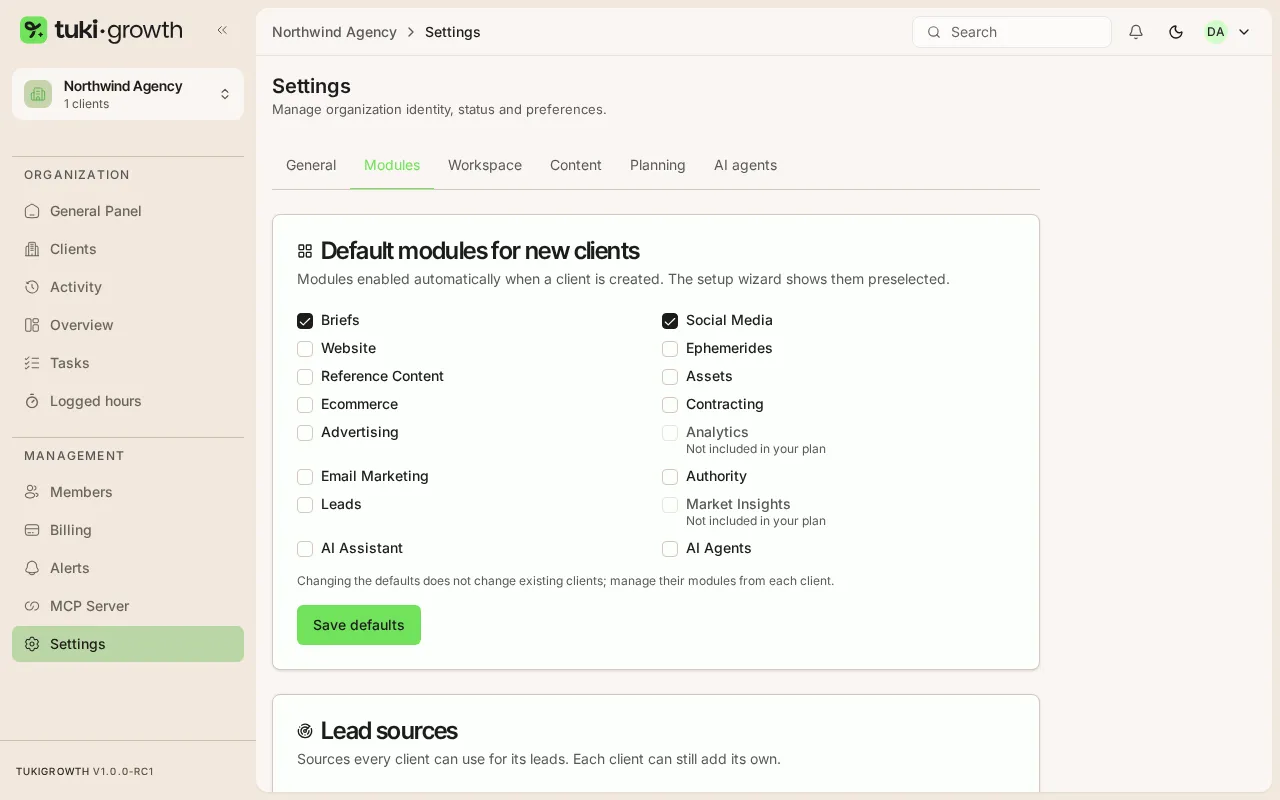
Click Save defaults
The client setup wizard will show those modules preselected.
Change plans to get more modules
Open Billing
In the organization’s sidebar, open Billing. Owner and Admin members can view the page; only the Owner can make changes.
Choose the plan
During the free trial, choose the Plan and the Billing cycle (Monthly or Yearly) and click Start checkout. We take you to a secure payment page and you’re only charged when you confirm.
If you already have a subscription, use Change plan and then Review change. Upgrading charges the prorated difference right away; downgrading schedules the change for the next renewal, and you can undo it with Cancel scheduled change.
I can't turn a module on
Check whether the card says Not available in your plan: in that case, ask an Owner to change the plan. If that notice doesn’t appear, make sure you have the Owner, Admin, or Editor role.
The module switches are locked when I create a client
In the wizard’s last step only Owner and Admin members can turn modules on. Editors can do it afterward from the client’s Modules tab.
A module I set as a default doesn't show up on an existing client
Default modules apply only to new clients. For an existing client, turn it on from its Modules.