

Approve and publish a post
Move a post through the approval flow and then schedule it or publish it on the social network.
Each post goes through a series of statuses: from Idea to Published, passing through the approver’s review. A different role can take each step, so the team works in order and nothing goes out without approval.
A post’s flow
| Status change | Who can do it |
|---|---|
| Idea to Draft | Owner, Admin, Editor |
| Draft to To approve | Owner, Admin, Editor |
| To approve to Approved | Owner, Admin, Approver |
| To approve to Discarded | Owner, Admin, Approver, with a required comment |
| Approved to Scheduled | Owner, Admin, Editor |
| Scheduled to Published | Owner, Admin, Editor |
An Approver can approve and discard but not edit; an Editor can edit and send for review but not approve.
Move a post through the flow
Open the post
In Social Media, click the post. A panel opens with its Details, Comments, and Activity tabs. At the bottom right is the Change status button.
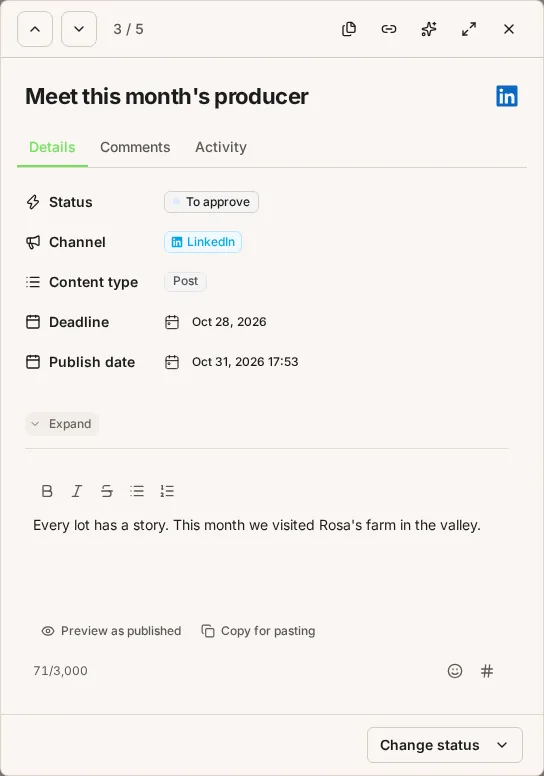
Click Change status
A picker opens with the statuses you can move the post to from the current one, grouped under Active and Closed. Only the changes your role allows appear: for example, from To approve an Approver sees Approved and Discarded.
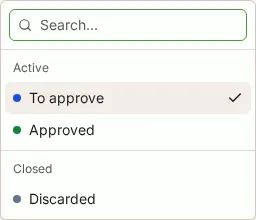
Choose the new status
When you move a post under review to Discarded, TukiGrowth asks for a comment (Comment required) so the team knows why. Every change is recorded in the Activity tab.
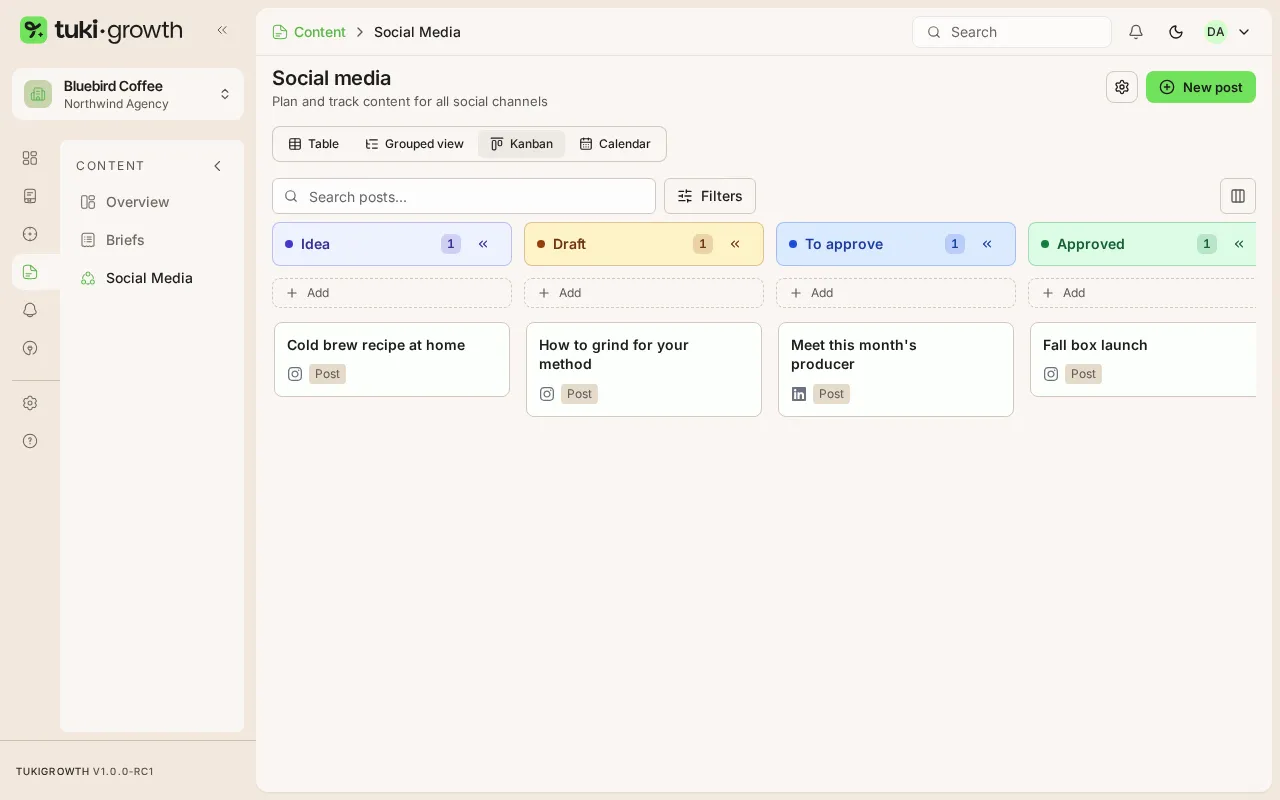
You can also drag posts between columns in the Kanban view: only the changes your role can make are allowed.
Ask a specific person to approve
In the post, the Request approval section lets you invite a team member with access to the selected accounts to approve the publication first. The post moves to To approve and that person gets a notification. If no members can approve, the section appears disabled with the notice There are no members who can approve.
Schedule and publish
Schedule the post
With the post Approved, use Schedule. Scheduled posts go out on their own on their Publish date.
Or publish it now
Click Publish now. A preview opens where you can adjust the copy before publishing.
Check the result
When the post goes out, View post appears with a link to the network. If something fails, you’ll see Failed publication with the error details and the Retry publish button.
I don't see the Approve option
Only Owner, Admin, and Approver members can approve. If you’re an Editor, use Send for review and let the approver know.
Schedule and Publish now are disabled
Hover over the button to see why. It’s usually that there’s no connected account for that network, that copy or an image is missing, or that the client’s workflow doesn’t have the Approved and Scheduled statuses.
The post ended up in Failed publication
Open the post, check the error details, and use Retry publish. If the problem is the account, reconnect it in Integrations.