

Create website content
Plan an article, landing page, or page for a client's website, with its SEO details.
The Website module is for planning and tracking a client’s site content: articles, landing pages, pages, and FAQs. Each piece has its text and SEO details and goes through the same approval flow as posts.
Create the content
Open Website
Pick the client and, in the Content menu, open Website. You can see the pieces as a Table, Kanban (by priority or by status), or Calendar.
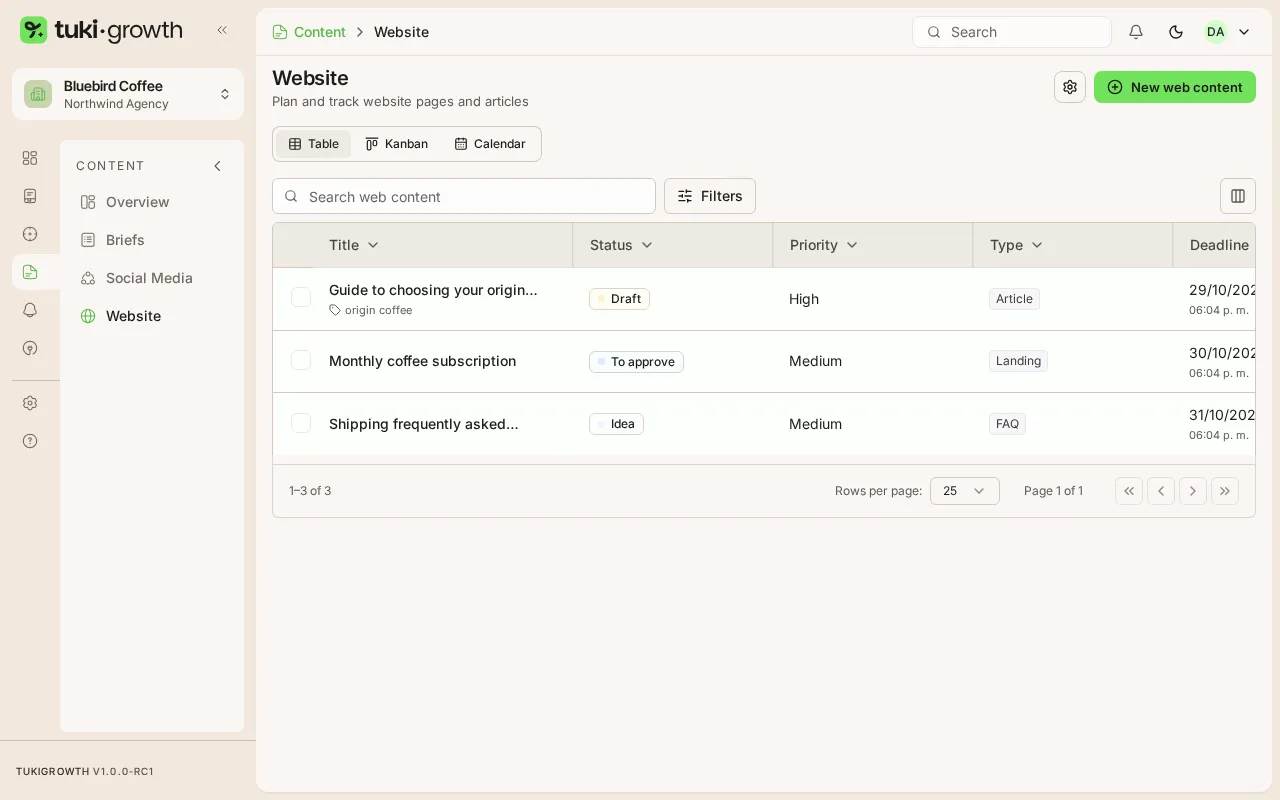
Click New web content
A panel opens. Type the title at the top: it’s the only required field.
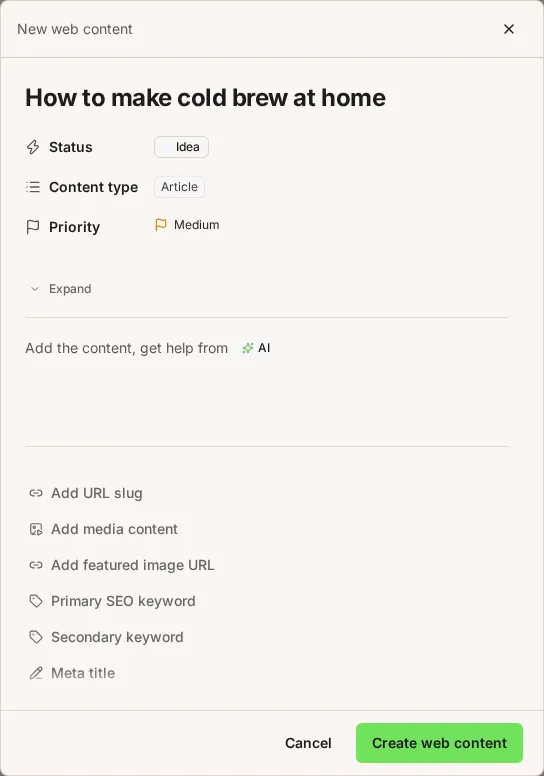
Fill in the properties
Choose the Content type (Article, Landing, Page, FAQ, or Other), the Priority (Critical, High, Medium, or Low), the Deadline, and the Publish date. You can also link it to a Strategy. Expand shows the empty fields.
Write the content
Use the text editor to draft the piece. The AI button helps you get started.
Add the SEO details
Below the text, the list of optional fields lets you add only what you need:
- URL slug: the page’s address.
- Primary SEO keyword and Secondary keywords.
- Meta title (up to 60 characters) and Meta description (up to 160).
- Featured image URL and its Alt text.
- Media content: images or videos.
Click Create web content
The piece is saved and shows up in the list.
Follow the piece to the end
Open a piece and use View full detail to see all its fields, the workflow, and the SEO section.
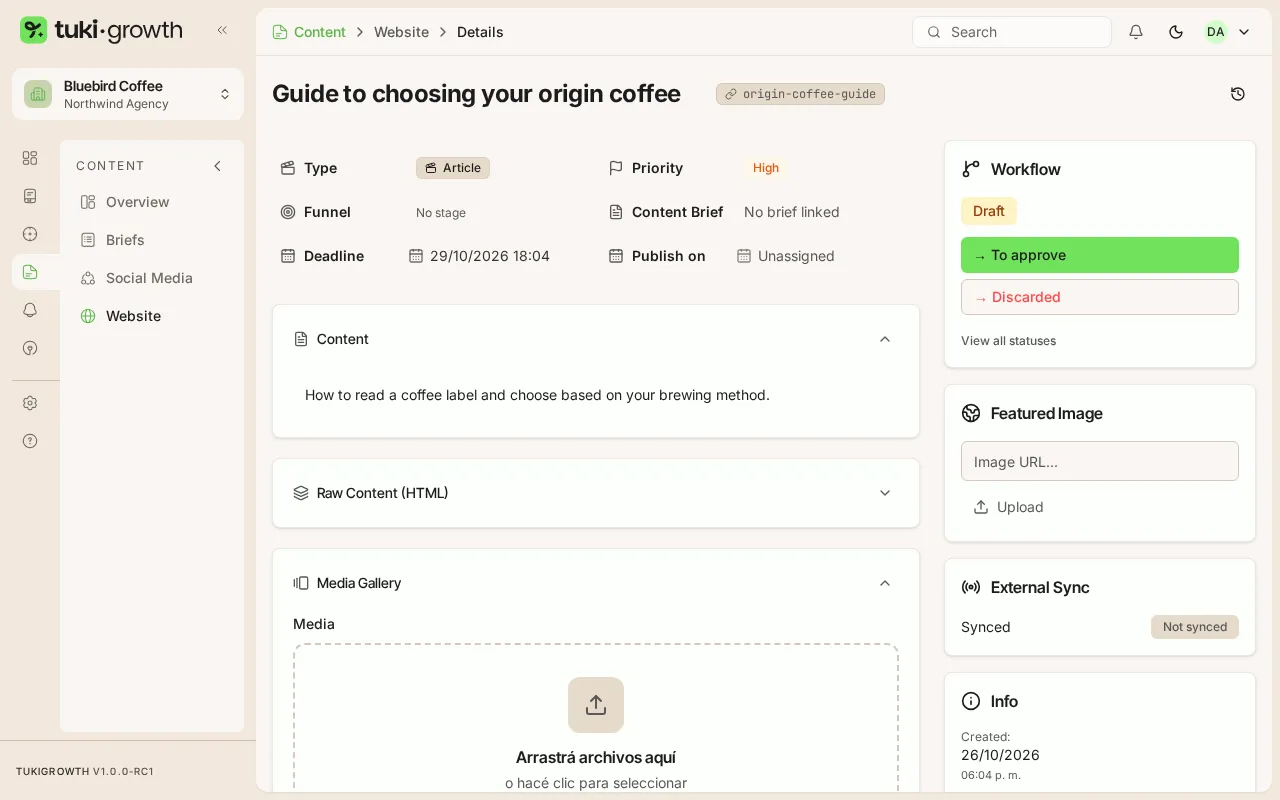
The piece moves through the Idea, Draft, To approve, Approved, and Published statuses, with the same permissions as in Social Media: an Editor sends it for review and an Approver approves or discards it.
I don't see the SEO fields
They appear only when you add them. Look below the text for the field you need, for example Meta title, and click it to add it.
I can't add the alt text
The Alt text belongs to the featured image: add the Featured image URL first.
I marked the piece as Published but it doesn't show on my site
The Published status doesn’t publish on its own. Connect your CMS and push the piece from the sync block.