

Create a social media post
Plan a post for a social network: pick the channel and dates, write the copy, add images, and save it.
Posts are planned in Social Media: each one has a channel, a content type, dates, copy and, if you want, images or video. You can save it as an idea and work on it later, or take it all the way through approval and publishing.
Create the post
Open Social Media
Pick the client in the sidebar selector and, in the Content menu, open Social Media. You can see the posts as a Table, Grouped view, Kanban, or Calendar.
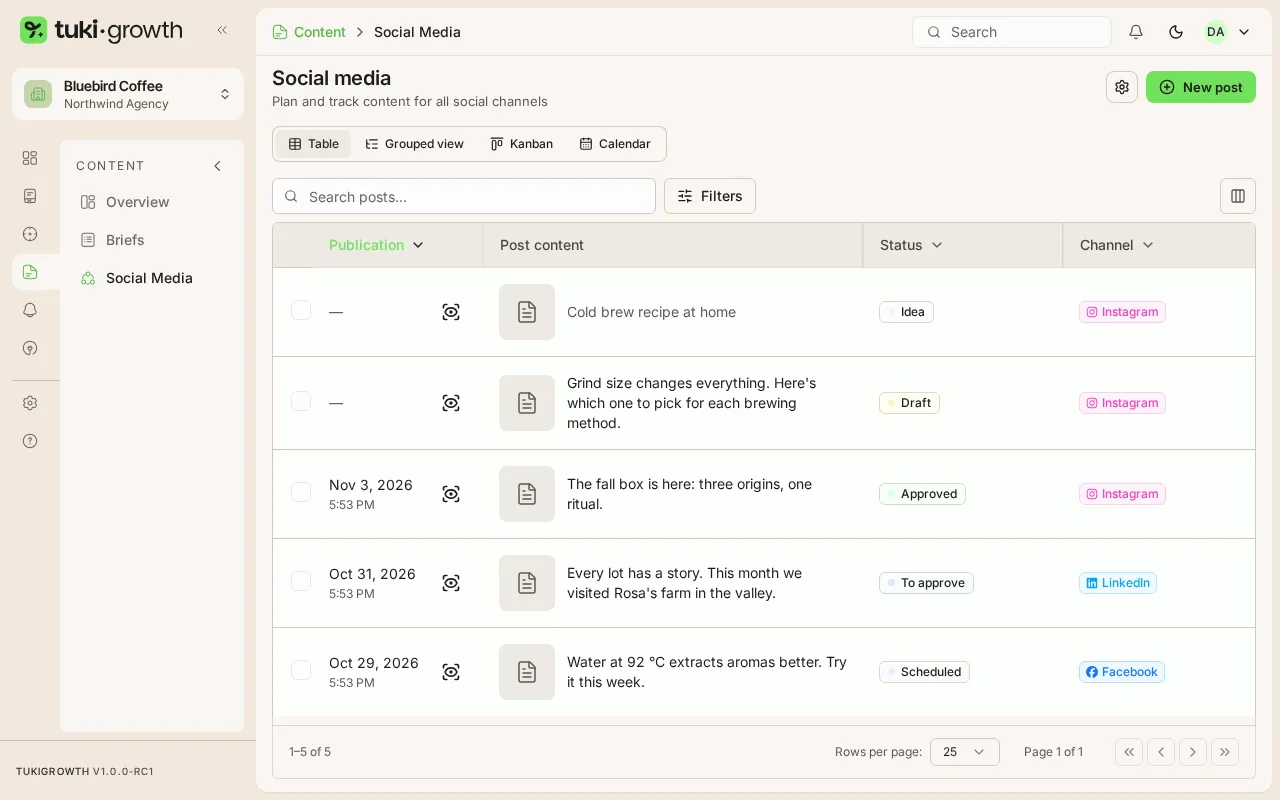
Click New post
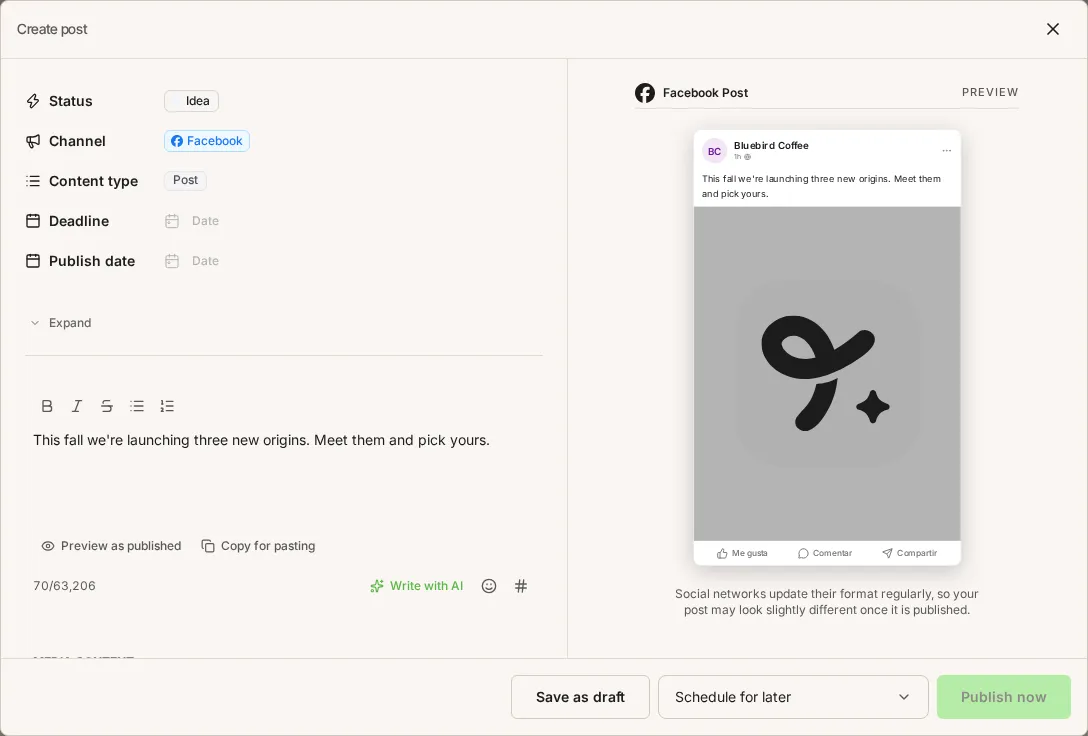
The Create post window opens. On the right you see a Preview of how it will look on the network.
Set the channel, type, and dates
Choose the Channel and the Content type (the type has to be compatible with the channel). If you want, set the working Deadline and the Publish date. Expand reveals optional fields such as Campaign, Strategy, and Initiative.
Write the copy
Click the text area and write the copy. It has a character limit depending on the channel. The AI button helps you draft it. Below you can add emojis and hashtags.
Add images or video
Under Media content, click Library to pick the client’s files or upload them from your computer. For each image you can write alt text.
Save the post
Click Save as draft. The post is saved as an Idea. For the rest of the journey (approval, scheduling, and publishing), continue with Approve and publish a post.
I can't save the post
There has to be at least one active channel in the Social media settings, and the post needs copy or at least one image. If the content type isn’t compatible with the channel, pick another one.
Schedule and Publish now are disabled
Hover over the button to see why. The most common reasons are that there’s no connected account for that network in Integrations, that the copy or an image is missing, or that the client’s workflow doesn’t include the Approved and Scheduled statuses.
I don't see the New post button
You need the Owner, Admin, or Editor role. With other roles you can view posts but not create them.