

Connect social accounts
Connect Instagram, Facebook, LinkedIn, TikTok, and Pinterest to schedule and publish posts from TukiGrowth.
With a connected account, TukiGrowth can schedule and publish a client’s posts directly on its social network. Without one, you can still plan and approve posts, but the Schedule and Publish now buttons stay disabled.
Connect a network
Open Social Accounts
Pick the client in the sidebar selector, go to Integrations, Apps, and click Connect on the Social Accounts card. A panel opens with the five networks: Instagram, Facebook, LinkedIn, TikTok, and Pinterest.
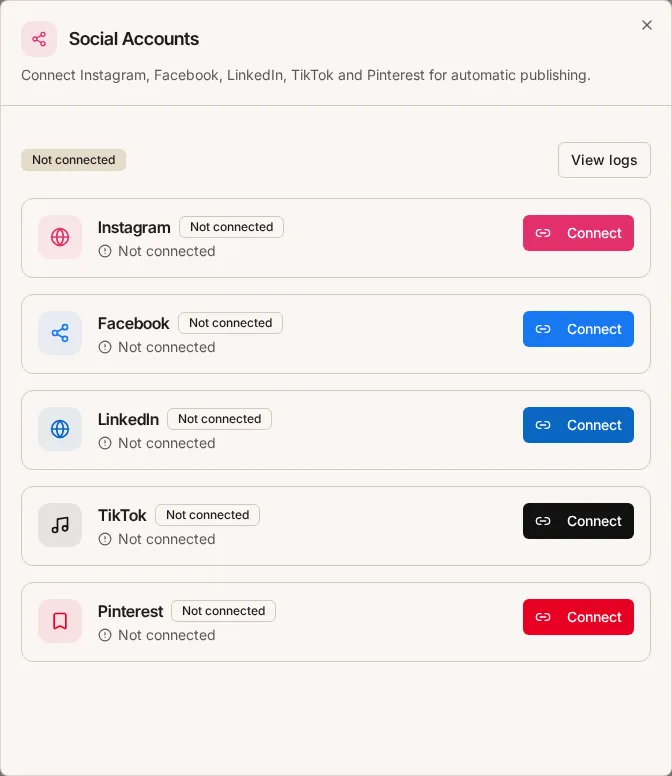
Click Connect on the network you want
The button changes to Connecting… and an authorization pop-up window opens.
Sign in and grant permission
In the window, sign in with the account that manages the profile or page and accept the permissions the network asks for. When you finish, the window closes on its own.
Check that it's connected
You’ll see a message that the network connected successfully. The row shows the account name (Connected as), its type (Profile, Page, or Business), and the connection date, and the panel shows how many networks you have connected.
Pause or disconnect
- Pause: turn off the account’s Enabled switch. If you pause all of them, the panel shows All accounts paused.
- Disconnect: use the row’s unlink icon and confirm. You’ll need to connect it again to use it. If an account stops working, disconnect it and connect it again.
- Connect another: on networks that allow more than one account, the Connect another button adds another.
The browser blocked the authorization window
Allow pop-ups for TukiGrowth and try again. If you close the window before finishing, the authorization is canceled and you can start over.
It says the profile belongs to another client
A social account can only be connected to one client. Disconnect it from the other client or use a different account.
It says it was already connected
The account was already connected: TukiGrowth syncs the existing account and you don’t need to repeat anything.
The connection couldn't be completed
Click Connect again and sign in once more. If the error repeats, check that your user manages the profile or page on that network.
I connected the account but can't publish
Check that the post is for the same network as the connected account, that it has text or an image, and that it has gone through the required workflow statuses. Approve and publish a post walks through the process.