

Manage API keys
Create keys to connect other tools to TukiGrowth, and choose which organization or client they reach and what they can do.
An API key lets another tool (a script, a CRM, an AI assistant over MCP) work with TukiGrowth data on your behalf. Each key has a scope (an organization or a single client) and its own permissions, which never exceed those of your role.
Create a key
Open your API keys
Open My Profile from your user menu and go to the API Keys tab. It lists your active keys with their scope, permissions, last use, and expiration.
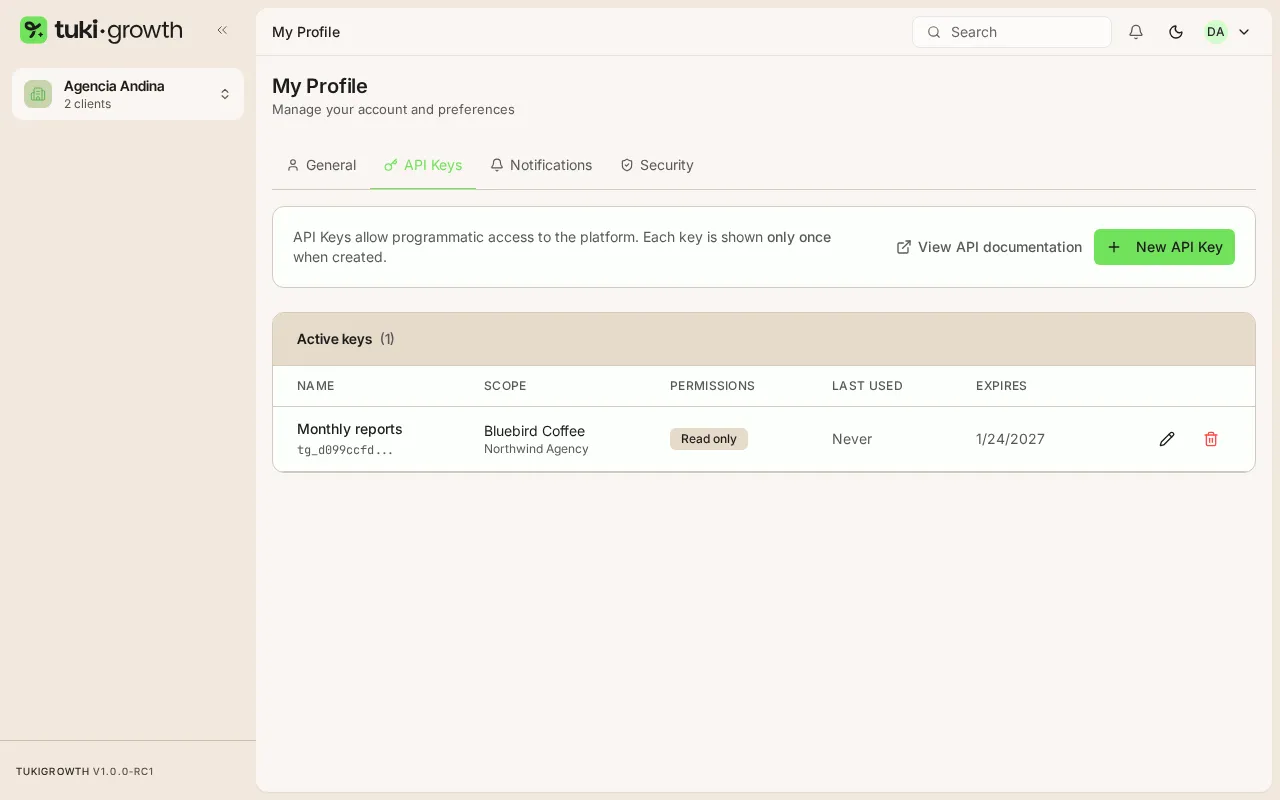
Click New API Key
Enter a Name that helps you recognize the key, for example the tool that will use it.
Choose the scope
In Scope, choose the Organization and, if the key is for a single client, the Client. With Whole organization, the key reaches every client of the organization.
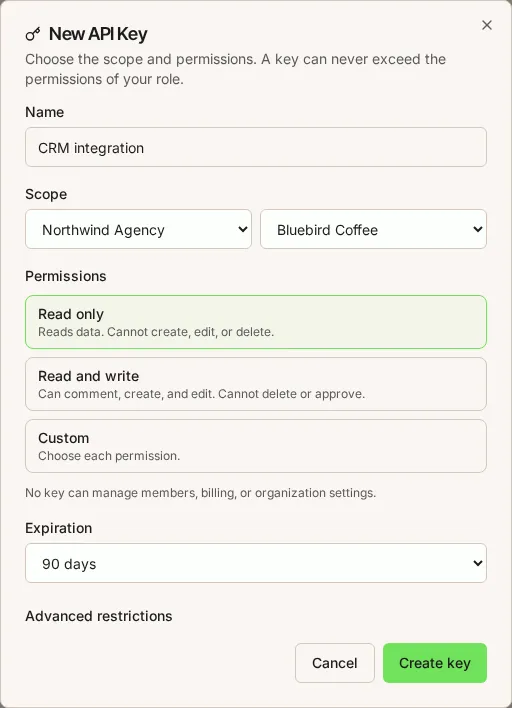
Choose the permissions
Choose Read only, Read and write, or Custom. With Custom you select each permission. Permissions your role does not have in that scope are disabled.
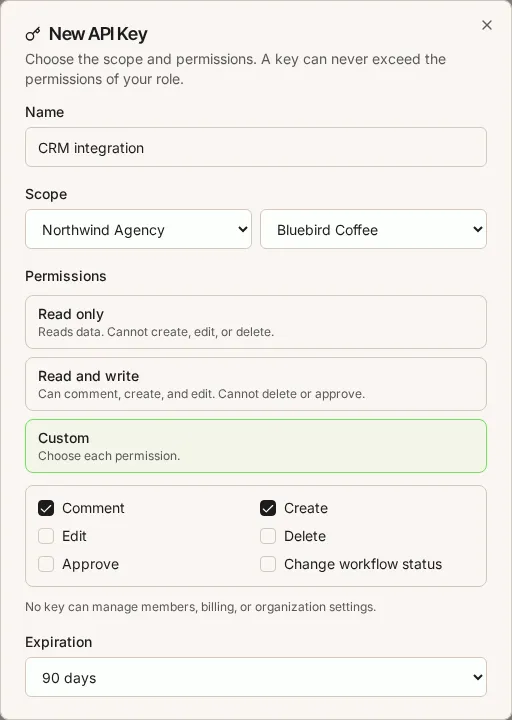
Choose the expiration
In Expiration choose 30 days, 90 days (the default), 180 days, 1 year, or Never expires.
Restrict the key (optional)
In Advanced restrictions you can turn on Limit to specific modules or Limit to specific MCP tools and select only what the tool needs.
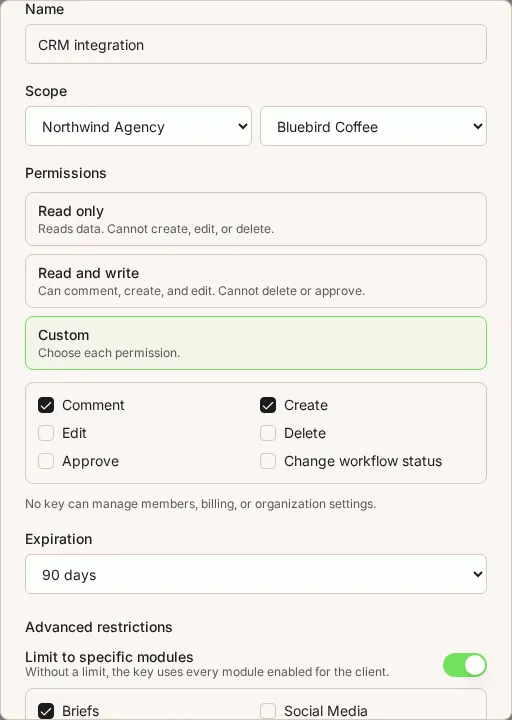
Click Create key and save it
TukiGrowth shows the key only once. Copy it, store it somewhere safe, and click Done, I saved it. The tool must send it in the X-API-Key header.
| Permission | What it allows |
|---|---|
| Read only | Read data. Cannot create, edit, or delete. |
| Read and write | Comment, create, and edit. Cannot delete or approve. |
| Custom | Choose from Comment, Create, Edit, Delete, Approve, and Change workflow status. |
Edit or revoke a key
- To change the name, permissions, restrictions, or expiration, click Edit on the key’s row. Changes apply on the next request. The scope cannot be changed: create a new key instead.
- To deactivate a key, click Revoke and confirm. Any integration using it stops working, and the key cannot be reactivated.
See every key of the organization
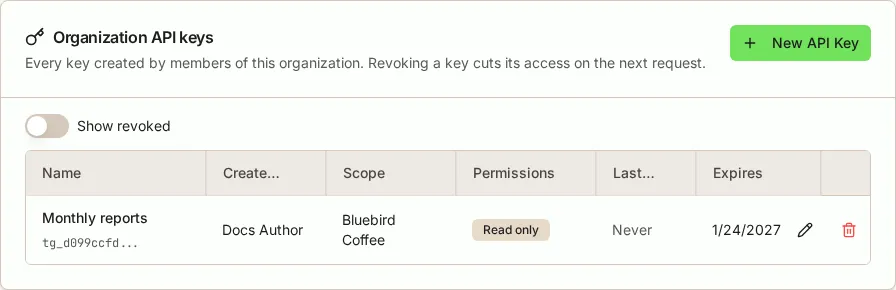
If you have the Owner or Admin role, open the organization and go to MCP Server. With the MCP server enabled, the Organization API keys card lists every member’s keys with who created them, scope, permissions, last use, and expiration. Revoked or expired keys show a label next to the name. You can edit or revoke them from there. Turn on Show revoked to include deactivated keys.
I don't see the New API Key button
Only organization members can create keys. If you access TukiGrowth as an external member of a client, ask the agency to set up the integration.
A permission option is disabled
Your role does not have that permission in the selected scope. Ask an Owner or Admin to create the key, or choose a lower permission.
A key shows Full role
It was created before per-key permissions existed, so it acts with your full role. Edit it to restrict it.