

Connect WordPress
Import a WordPress site's posts into TukiGrowth's website content and, if you want, push changes and drafts back.
When you connect a client’s WordPress, TukiGrowth imports its posts into the Website module and keeps them in sync. If you turn it on, you can also push changes and drafts from TukiGrowth to the site.
Connect the site
Open WordPress in Apps
Pick the client, go to Integrations, Apps, and click Connect on the WordPress card. A panel opens with the form.
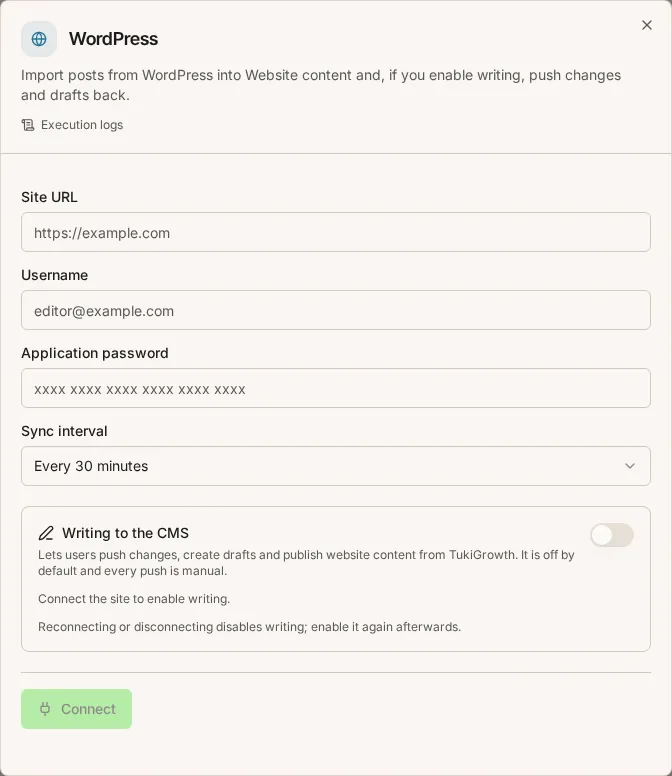
Fill in the site details
Type the Site URL, the Username, and the Application password.
Choose the sync interval
Under Sync interval choose Every 15 minutes, Every 30 minutes, Every hour, Every 6 hours, or Daily. The minimum is every 15 minutes.
Click Connect
If everything is right you’ll see WordPress connected successfully. and the card changes to Connected.
Check the sync
Click Sync now. When it finishes you’ll see how many items were imported, updated, and archived. The posts show up in the client’s Website module.
Push changes to WordPress (optional)
Writing to the site is off by default and every push is manual.
Turn on Writing to the CMS
With the site connected, turn on the Allow writing to WordPress switch. TukiGrowth checks your user’s permissions and shows them to you.
Push the content you want
In the Website module, each item has a site sync block to push its changes or create a draft in WordPress.
Pause, adjust, or disconnect
- Pause stops syncing without disconnecting the site; Resume turns it back on.
- Change the interval and click Save settings.
- Disconnect removes the connection. You’ll need to connect again to sync.
It couldn't connect
Check that the URL is correct, that the user exists, and that the Application password is copied correctly. Some connection error messages appear in English.
A firewall or Cloudflare blocks the connection
Some sites block automated connections. Ask whoever manages the site to allow requests to the REST API (/wp-json/) from TukiGrowth.
The integration shows Needs attention
Open the panel and check the last sync error. If the application password was revoked, create a new one and connect again.
I can't turn on writing
The stored credential may be read-only. Reconnect with a user that has the Editor or Author role.