

Connect TukiGrowth to Claude
Add TukiGrowth as a Claude connector over MCP, on an individual account or on a Team or Enterprise plan.
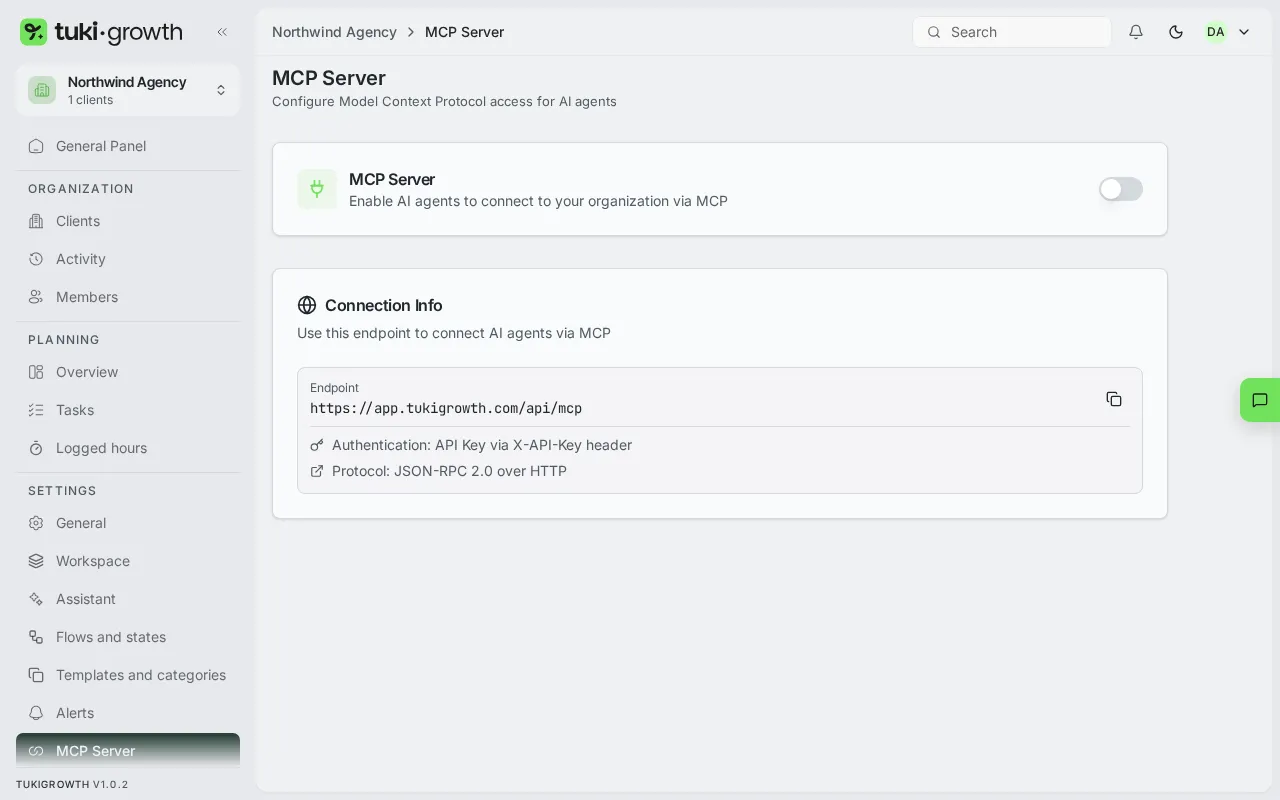
With TukiGrowth’s MCP server, Claude can read and work with your organization’s data from a conversation. The connection uses your TukiGrowth user: Claude only sees what your role lets you see.
How you add the connector depends on your Claude plan.
Open Claude's connectors
In Claude, open Customize and go to Connectors.
Add a custom connector
Choose to add a custom connector and enter the address https://app.tukigrowth.com/api/mcp. Leave the optional OAuth fields (client ID and secret) empty.
Authorize in TukiGrowth
Claude takes you to TukiGrowth. Sign in if asked, choose the organization (and, to limit access, a client) and click Allow access.
Turn the connector on in your conversation
Back in Claude, turn on the TukiGrowth connector in the conversation and ask, for example, for the list of your clients.
On these plans the connection has two parts: first the Claude organization adds the connector, then each person connects it with their own account.
A Claude Owner adds the connector
Only the Owner of the organization in Claude can do this. In Organization settings, go to Connectors, choose to add a custom connector of type Web and enter https://app.tukigrowth.com/api/mcp. Leave the optional OAuth fields (client ID and secret) empty.
Each person opens the connectors
Anyone who wants to use it opens Customize and goes to Connectors. The TukiGrowth connector appears with the Custom label.
Each person connects their TukiGrowth account
Click Connect. Claude takes you to TukiGrowth: sign in with your user, choose the organization (and, to limit access, a client) and click Allow access.
Turn the connector on in your conversation
Back in Claude, turn on the TukiGrowth connector in the conversation and try a simple query.
What Claude can do
Each person connects with their own user, so Claude respects your role and the organization or client you chose when authorizing. TukiGrowth Owners and Admins can choose which MCP tools are available under MCP Server, in the Tool Access card.
I authorized but Claude says it can't connect
Check that your organization’s plan includes API access and that the MCP server is turned on under MCP Server. Ask a TukiGrowth Owner or Admin to review it.
I can't add the connector in Claude
On a Team or Enterprise plan only the Claude Owner can add custom connectors. Ask them to do it, then connect yourself.
Authorization doesn't let me choose an organization
You only see organizations you are a member of. If none appears, ask an Owner or Admin to invite you.
I'd rather not use OAuth
Other tools can connect with an API key instead of Claude’s authorization. See the API keys guide.