

Connect apps and integrations
Find the integrations hub, understand each app's status, and learn to connect, pause, or disconnect it.
Integrations connect a client with the platforms it already uses: social networks, its website, analytics, email, and more. They’re managed from a single place, the Apps and integrations hub, client by client.
Open the hub
Pick the client
Use the sidebar selector to pick the client you’re connecting the app for.
Open Integrations, then Apps
Under Integrations you find Apps, MCP & API, Logs, and Imports. Go to Apps.
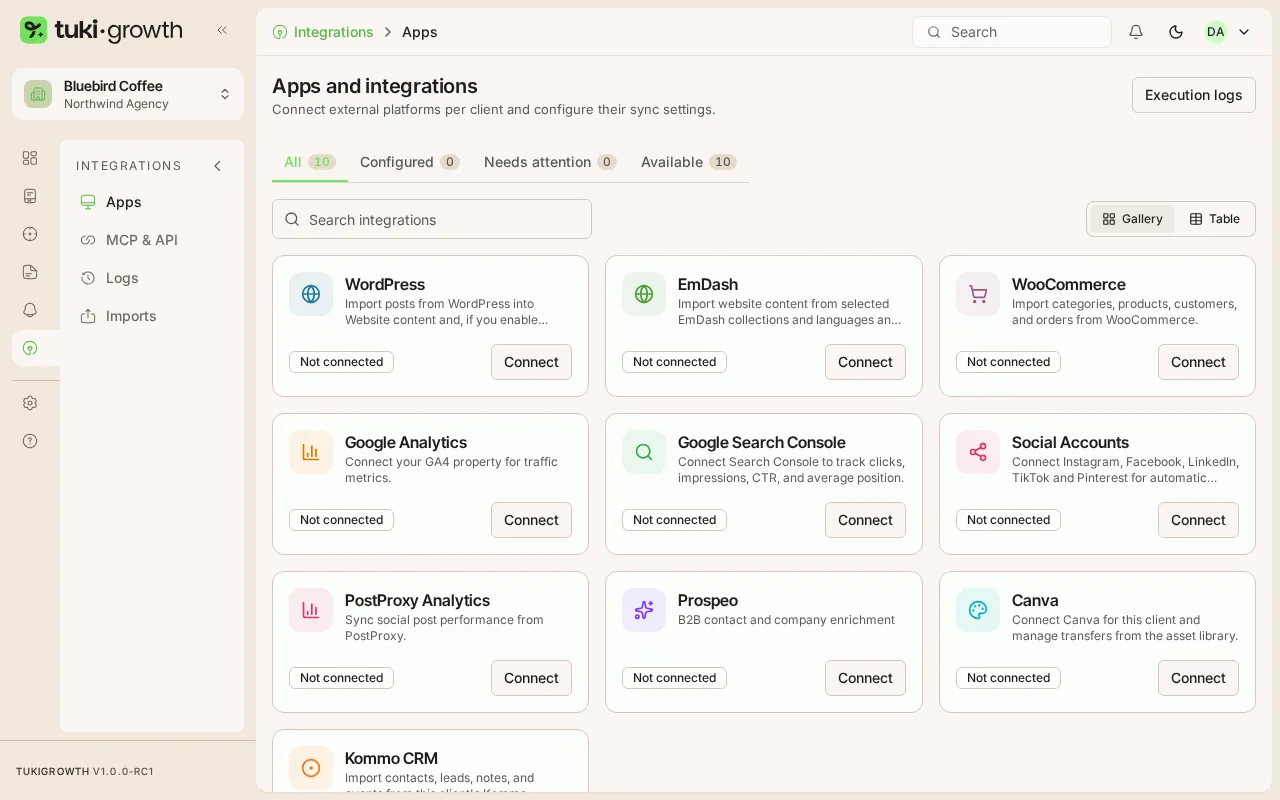
Understand the statuses
Each card shows its status:
| Status | What it means |
|---|---|
| Not connected | You haven’t connected it yet. The button says Connect. |
| Connected | It’s working. The button says Configure. |
| Paused | Still connected but Connected, sync paused: it doesn’t bring new data until you resume it. |
| Needs attention | There was an error or the connection was lost. Open the integration to see why and reconnect it. |
Use the All, Configured, Needs attention, and Available tabs, or the Search integrations box, to find an app faster.
Connect or configure an integration
Click Connect or Configure
A panel opens on the right with that integration’s details.
Fill in what it asks for
Depending on the app, you’ll sign in to an external service from a pop-up window or paste credentials. The guide for each integration walks through the steps.
Check that it's connected
The card changes to Connected. With Execution logs you can review that integration’s syncs and errors.
Pause or disconnect
Inside a connected integration’s panel you can pause or disconnect it. When you disconnect, TukiGrowth asks Disconnect this integration? and tells you that you’ll need to connect it again to use it. Confirm with Disconnect.
Available integrations
Among others, you can connect Social Accounts (Instagram, Facebook, LinkedIn, TikTok, and Pinterest), Google Analytics, Search Console, WordPress, WooCommerce, Canva, Kommo, and Brevo. Some appear only if the matching module is on for the client: for example, Brevo needs the Email Marketing module.
The browser blocked the authorization window
Allow pop-ups for TukiGrowth and try connecting again. If you close the window before finishing, you’ll see Authorization was canceled; you can start over.
An integration shows Needs attention
Open it, read the error message and, if needed, connect it again.
I can't find an app in the list
Some apps depend on a client module (for example, Email Marketing for Brevo). Turn it on in the client’s Modules and the app will appear.